 ### At-a-glance information
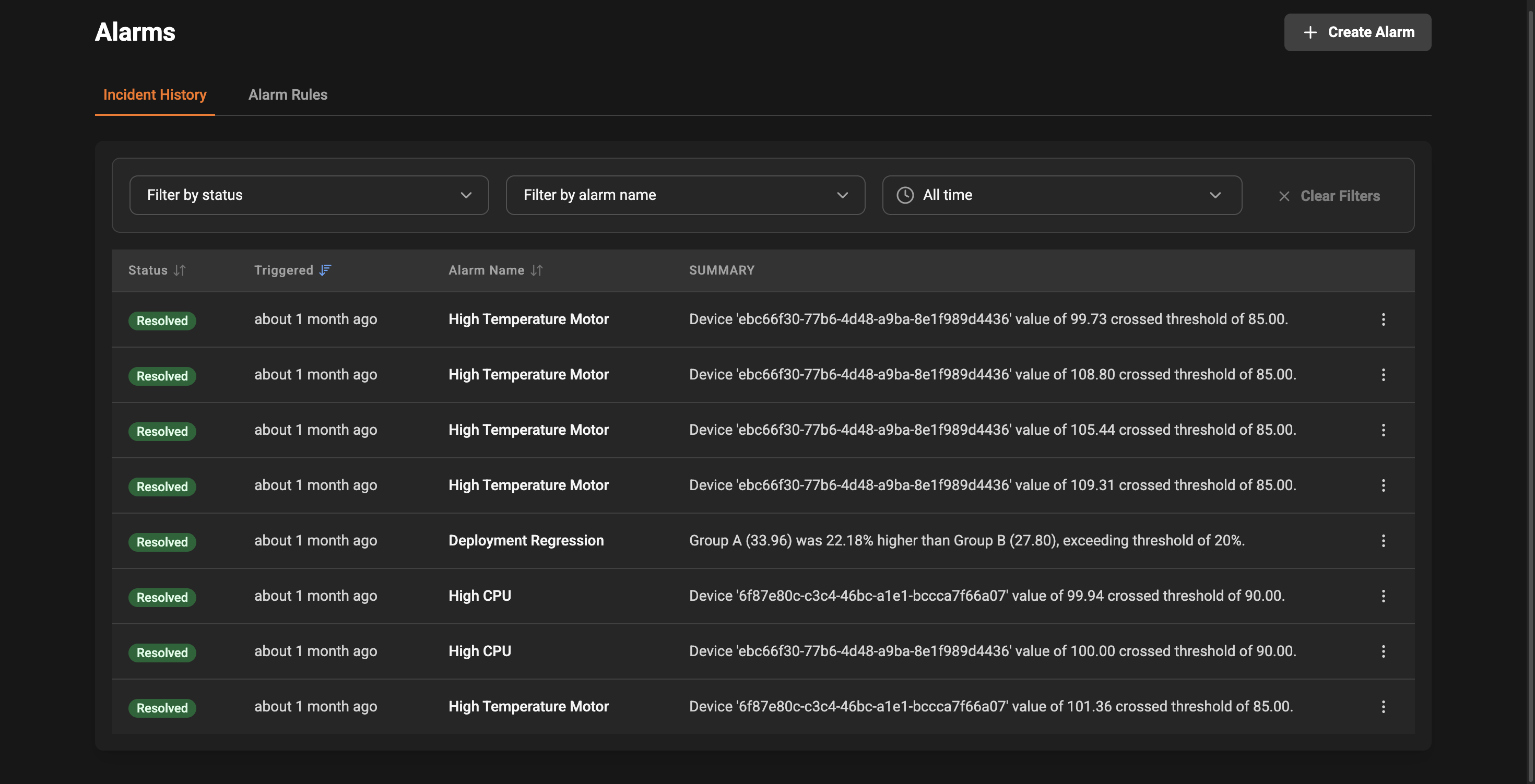
Each row in the incident list shows the most relevant details so you can quickly scan and prioritize:
* Status: The current lifecycle of the incident (Open, Acknowledged, Resolved). Color-coded badges make it easy to spot urgent items.
* Triggered: A human-friendly time indicator (e.g., "5 minutes ago") with the exact timestamp available on hover.
* Alarm Name: Which alarm rule created the incident, so you know what condition was met.
* Summary: A short description of why the incident fired to help you triage faster.
Click any row to see more details or use the action menu to analyze the incident with Insaion Copilot.
### Filters and time ranges
Use the controls above the list to narrow the incidents shown:
* Status filter: Show only Open, Acknowledged, or Resolved incidents.
* Alarm filter: Limit the list to incidents from a specific alarm rule.
* Time range picker: Focus on recent events or look back over a custom period.
There's also a Clear Filters button to quickly reset all filters.
### At-a-glance information
Each row in the incident list shows the most relevant details so you can quickly scan and prioritize:
* Status: The current lifecycle of the incident (Open, Acknowledged, Resolved). Color-coded badges make it easy to spot urgent items.
* Triggered: A human-friendly time indicator (e.g., "5 minutes ago") with the exact timestamp available on hover.
* Alarm Name: Which alarm rule created the incident, so you know what condition was met.
* Summary: A short description of why the incident fired to help you triage faster.
Click any row to see more details or use the action menu to analyze the incident with Insaion Copilot.
### Filters and time ranges
Use the controls above the list to narrow the incidents shown:
* Status filter: Show only Open, Acknowledged, or Resolved incidents.
* Alarm filter: Limit the list to incidents from a specific alarm rule.
* Time range picker: Focus on recent events or look back over a custom period.
There's also a Clear Filters button to quickly reset all filters.
 ### Sorting and pagination
You can sort the list by status, triggered time, or alarm name using the column headers. Results are paginated so you can step through large sets of incidents. Use the page controls at the bottom of the list to move between pages.
### Analysis
For a complete walkthrough of the AI flow, see [Copilot Incident Analysis](/copilot/incident-analysis).
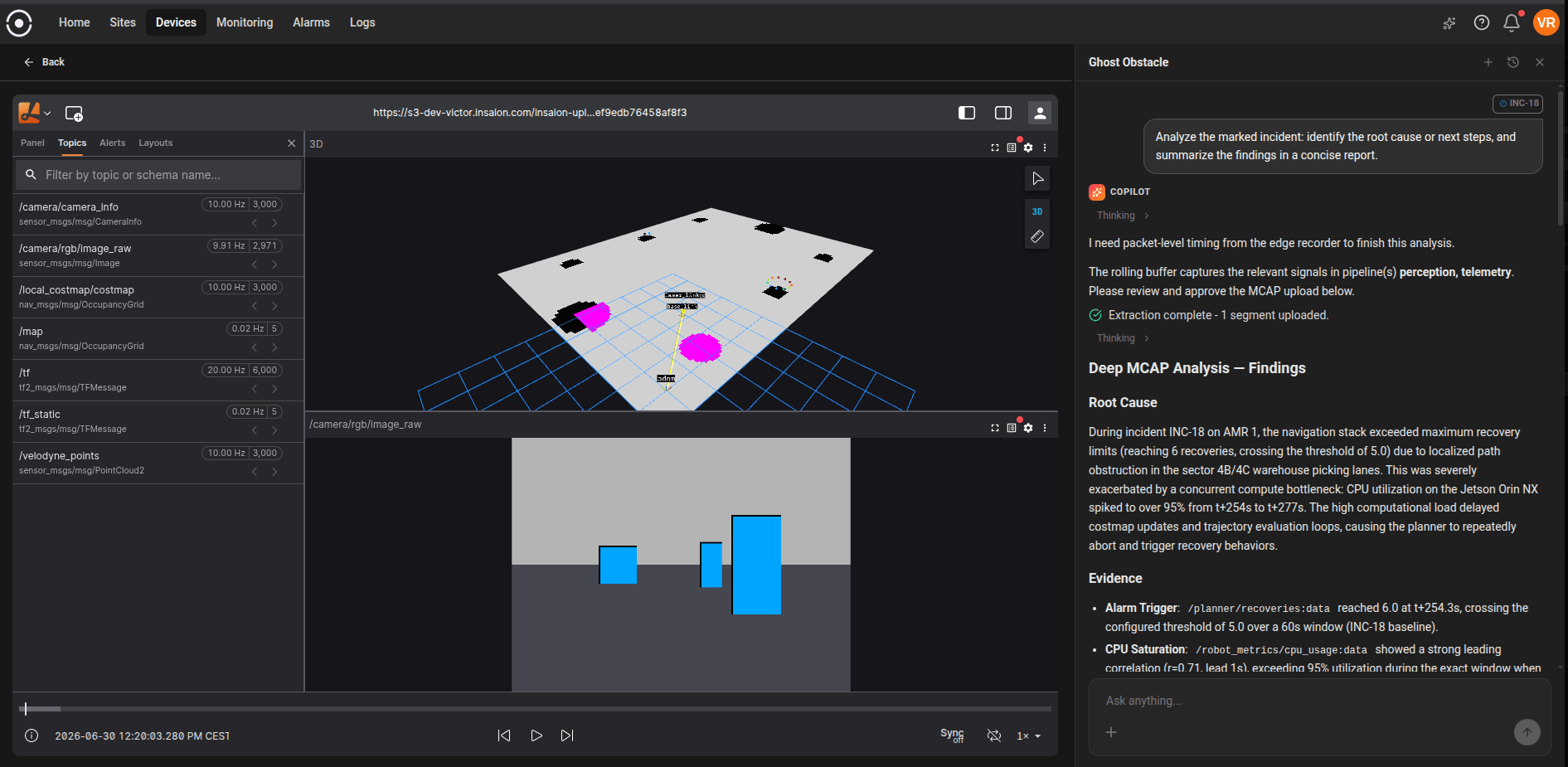
Click the action menu (three-dot button) on an incident to access quick actions such as:
* Analyze with Copilot: Launch incident analysis with context preloaded so you can investigate root causes faster.
When you choose Analyze with Copilot, the app starts an AI-assisted investigation using the incident context and related telemetry.
During analysis, Copilot correlates relevant signals, suggests a focused visualization layout, and highlights likely causes or related anomalies to validate.
When additional packet-level evidence is required, Copilot prepares an MCAP extraction request with a scoped time window and pipelines. After approval, upload and artifact registration proceed automatically, and Copilot resumes deep analysis in the same thread.
Final findings are streamed live and stored as a structured report so they remain available after refresh or reconnect.
You can continue exploring the same incident manually in the embedded Lichtblick visualizer at any point.
If your workspace reaches its AI credit limit, the app will show a clear warning and you can continue with manual investigation using the same incident context.
### Sorting and pagination
You can sort the list by status, triggered time, or alarm name using the column headers. Results are paginated so you can step through large sets of incidents. Use the page controls at the bottom of the list to move between pages.
### Analysis
For a complete walkthrough of the AI flow, see [Copilot Incident Analysis](/copilot/incident-analysis).
Click the action menu (three-dot button) on an incident to access quick actions such as:
* Analyze with Copilot: Launch incident analysis with context preloaded so you can investigate root causes faster.
When you choose Analyze with Copilot, the app starts an AI-assisted investigation using the incident context and related telemetry.
During analysis, Copilot correlates relevant signals, suggests a focused visualization layout, and highlights likely causes or related anomalies to validate.
When additional packet-level evidence is required, Copilot prepares an MCAP extraction request with a scoped time window and pipelines. After approval, upload and artifact registration proceed automatically, and Copilot resumes deep analysis in the same thread.
Final findings are streamed live and stored as a structured report so they remain available after refresh or reconnect.
You can continue exploring the same incident manually in the embedded Lichtblick visualizer at any point.
If your workspace reaches its AI credit limit, the app will show a clear warning and you can continue with manual investigation using the same incident context.
 ### Best practices
* Triage Open incidents first — these indicate active conditions that may need immediate attention.
* Acknowledge incidents you’re investigating so teammates know someone is working on them.
* Resolve incidents after the problem is fixed to keep the list focused on ongoing issues.
### Troubleshooting tips
* If expected incidents do not appear, confirm the alarm rule is enabled and that the time range or status filters do not exclude the event.
* Use the alarm name to jump back to the rule definition if you need to adjust thresholds or scope.
### Best practices
* Triage Open incidents first — these indicate active conditions that may need immediate attention.
* Acknowledge incidents you’re investigating so teammates know someone is working on them.
* Resolve incidents after the problem is fixed to keep the list focused on ongoing issues.
### Troubleshooting tips
* If expected incidents do not appear, confirm the alarm rule is enabled and that the time range or status filters do not exclude the event.
* Use the alarm name to jump back to the rule definition if you need to adjust thresholds or scope.