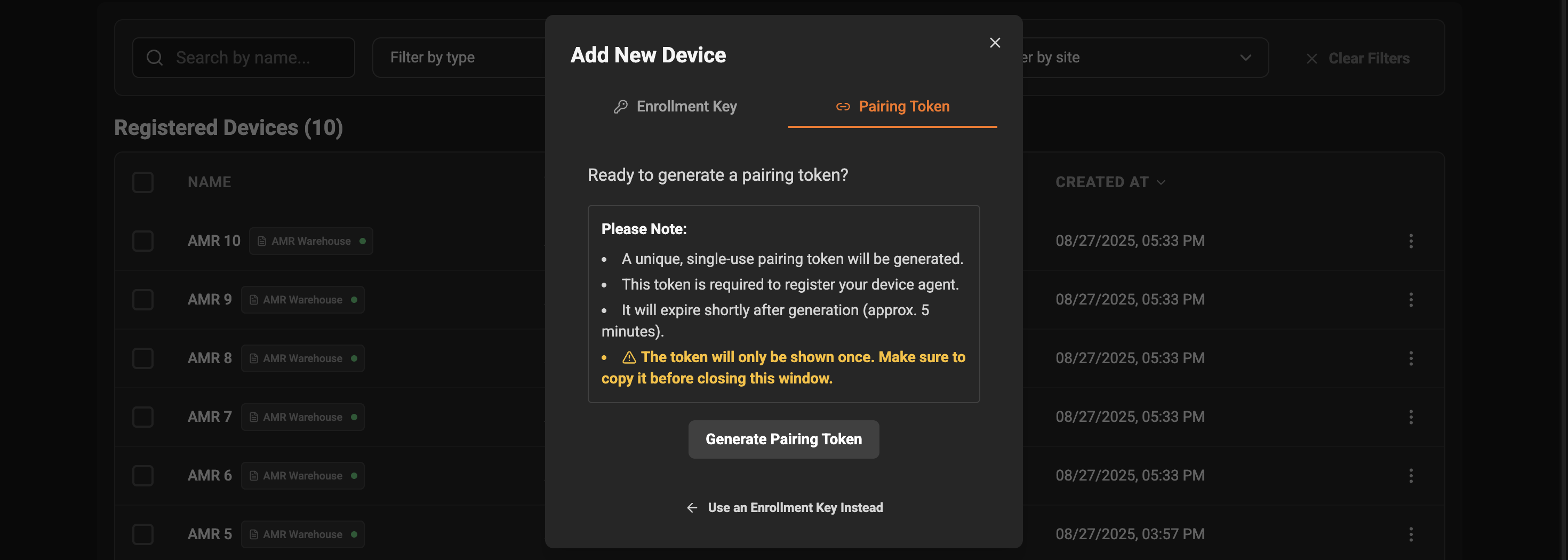
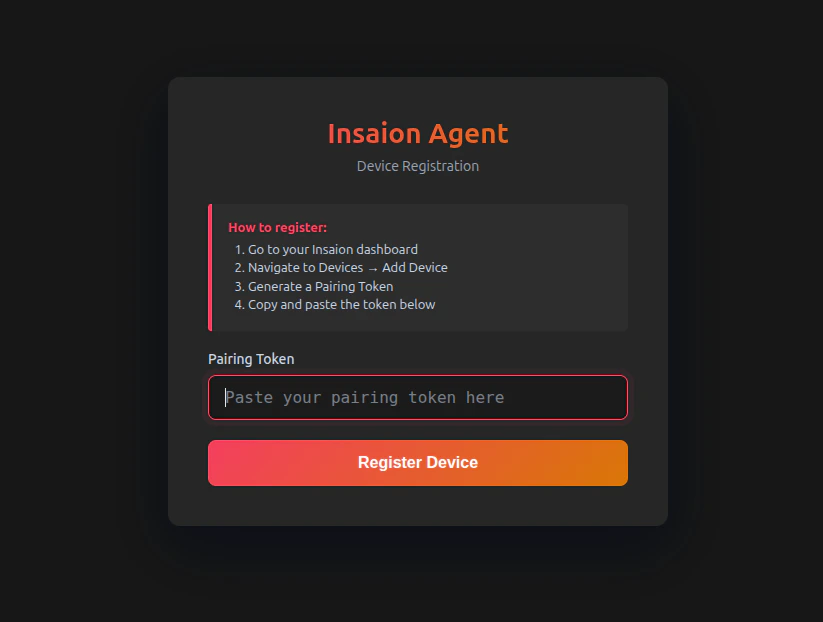
 6. Paste the pairing token into the pairing field and click Register.
7. If the token is valid the agent will register and the device will appear on the Devices page.
**Security notes**
* Pairing tokens are ephemeral and should be used only interactively. They are not suitable for automated deployments.
* If a token is accidentally exposed, it will expire quickly; there is no additional secret to rotate for this method.
## Enrollment key
Enrollment keys are persistent secrets that you create and manage under Settings → Enrollment Keys. They are designed for automated and bulk device registration during agent install or startup (for example, as part of a bootstrap script or container environment). Enrollment keys are treated like API keys: protect them, rotate them periodically, and scope or label them so you can audit which batch of devices used which key.
**When to use**
* Automated provisioning of many devices or robots.
* CI/CD or image-based installs where the agent should register itself without human intervention.
**Steps**
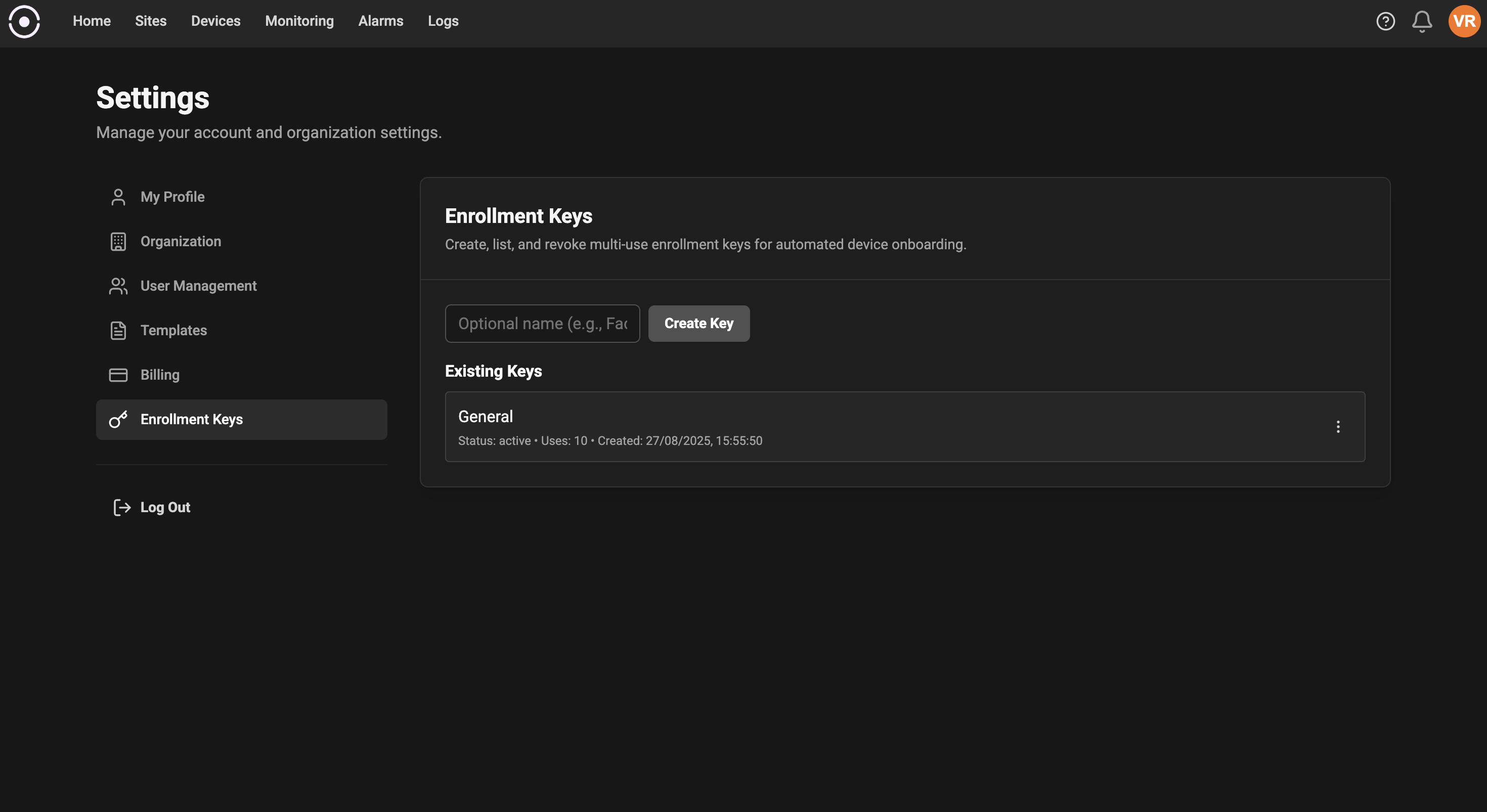
1. In the Insaion dashboard go to Settings → Enrollment Keys and create a new enrollment key. Optionally add a descriptive name to track its purpose.
2. Copy the key value (store it securely; treat it as a secret). Note that the key will only be shown once at creation.
6. Paste the pairing token into the pairing field and click Register.
7. If the token is valid the agent will register and the device will appear on the Devices page.
**Security notes**
* Pairing tokens are ephemeral and should be used only interactively. They are not suitable for automated deployments.
* If a token is accidentally exposed, it will expire quickly; there is no additional secret to rotate for this method.
## Enrollment key
Enrollment keys are persistent secrets that you create and manage under Settings → Enrollment Keys. They are designed for automated and bulk device registration during agent install or startup (for example, as part of a bootstrap script or container environment). Enrollment keys are treated like API keys: protect them, rotate them periodically, and scope or label them so you can audit which batch of devices used which key.
**When to use**
* Automated provisioning of many devices or robots.
* CI/CD or image-based installs where the agent should register itself without human intervention.
**Steps**
1. In the Insaion dashboard go to Settings → Enrollment Keys and create a new enrollment key. Optionally add a descriptive name to track its purpose.
2. Copy the key value (store it securely; treat it as a secret). Note that the key will only be shown once at creation.
 3. In Devices → Add Device choose Enrollment Key, paste the key into the wizard, and copy the generated Linux installation command.
Example:
```bash theme={null}
curl -fsSL https://get.insaion.com/setup.sh | sudo ENROLLMENT_KEY="your-enrollment-key-here" bash
```
4. Run the command on the target Linux machine.
5. The installer writes the enrollment key to `/etc/default/insaion-agent`, installs the `insaion-agent` systemd service, and starts it.
6. The agent uses the enrollment key to authenticate and register automatically. The device should appear in the Devices page shortly after successful registration.
## Troubleshooting
* Enrollment key rejected: verify you copied the key exactly and that the key is still active (not revoked or expired).
* Automated install not registering: confirm the `ENROLLMENT_KEY` is present in `/etc/default/insaion-agent` and that the device can reach the Insaion backend over the network.
* Pairing page not opening: verify the service is running with `sudo systemctl status insaion-agent`.
* Check agent logs for detailed error messages about enrollment or connectivity with `sudo journalctl -u insaion-agent -f`.
## Security and lifecycle
* Treat enrollment keys like secrets. Store them in a secrets manager or environment variables that are not checked into source control.
* Rotate keys periodically and revoke keys that are no longer needed. After revocation, devices that registered with a revoked key will continue to operate normally; revocation prevents new enrollments with that key.
* Use descriptive names when creating keys so you can identify which deployment or image used each key.
## Differences at a glance
* Pairing token: short-lived, single-use style flow. Best for manual, interactive registration and debugging.
* Enrollment key: persistent, intended for automated or bulk registration. Best for production fleets and scripted installs.
## Best practices
* Use enrollment keys for production deployments; label and rotate them regularly.
* Use pairing tokens for development, testing, or when you must avoid embedding a secret on the device.
* Limit distribution of keys and tokens. Prefer ephemeral tokens when handing a device temporarily to an external contractor.
* Monitor and audit the Devices page and enrollment key usage regularly.
3. In Devices → Add Device choose Enrollment Key, paste the key into the wizard, and copy the generated Linux installation command.
Example:
```bash theme={null}
curl -fsSL https://get.insaion.com/setup.sh | sudo ENROLLMENT_KEY="your-enrollment-key-here" bash
```
4. Run the command on the target Linux machine.
5. The installer writes the enrollment key to `/etc/default/insaion-agent`, installs the `insaion-agent` systemd service, and starts it.
6. The agent uses the enrollment key to authenticate and register automatically. The device should appear in the Devices page shortly after successful registration.
## Troubleshooting
* Enrollment key rejected: verify you copied the key exactly and that the key is still active (not revoked or expired).
* Automated install not registering: confirm the `ENROLLMENT_KEY` is present in `/etc/default/insaion-agent` and that the device can reach the Insaion backend over the network.
* Pairing page not opening: verify the service is running with `sudo systemctl status insaion-agent`.
* Check agent logs for detailed error messages about enrollment or connectivity with `sudo journalctl -u insaion-agent -f`.
## Security and lifecycle
* Treat enrollment keys like secrets. Store them in a secrets manager or environment variables that are not checked into source control.
* Rotate keys periodically and revoke keys that are no longer needed. After revocation, devices that registered with a revoked key will continue to operate normally; revocation prevents new enrollments with that key.
* Use descriptive names when creating keys so you can identify which deployment or image used each key.
## Differences at a glance
* Pairing token: short-lived, single-use style flow. Best for manual, interactive registration and debugging.
* Enrollment key: persistent, intended for automated or bulk registration. Best for production fleets and scripted installs.
## Best practices
* Use enrollment keys for production deployments; label and rotate them regularly.
* Use pairing tokens for development, testing, or when you must avoid embedding a secret on the device.
* Limit distribution of keys and tokens. Prefer ephemeral tokens when handing a device temporarily to an external contractor.
* Monitor and audit the Devices page and enrollment key usage regularly.