 ## At a glance
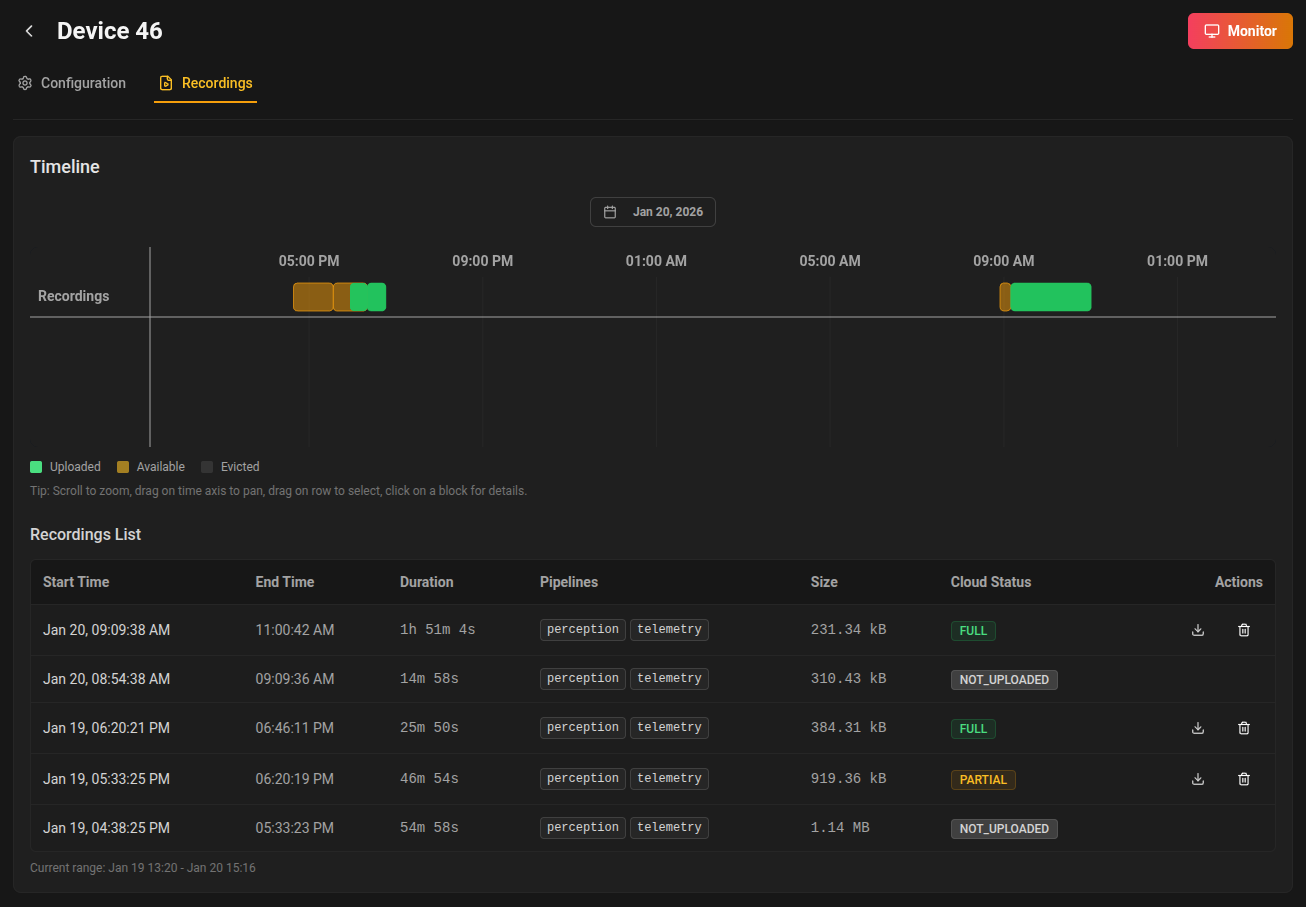
When you open the **Recordings** tab for a device, you'll see:
* **Timeline:** An interactive, zoomable timeline showing all available recordings for the selected time range.
* **Recordings List:** A grouped table showing all recordings, with each recording expandable to reveal its individual segments.
* **Upload Progress:** Real-time feedback on ongoing uploads to the cloud.
## Timeline
The timeline gives you a visual overview of all recordings for your device. Each block represents a recording session:
* **Green:** Fully uploaded to the cloud.
* **Amber:** Available locally, not yet uploaded.
* **Gray:** Evicted (no longer available on device).
You can:
* **Zoom and pan** to explore different time periods.
* **Select a range** by dragging on the timeline to filter the recordings list below.
* **Click a block** for details and upload options.
> **Tip:** Use the calendar button to quickly jump to a specific date.
## Recordings List
Below the timeline, you'll find a grouped table listing all recordings in the selected range. Each recording can be expanded to show its individual segments. For each recording and segment, you can see:
* **Start/End Time**
* **Duration**
* **Pipelines** (data streams included)
* **Size**
* **Cloud Status** (uploaded, uploading, queued, etc.)
### Segment Grouping
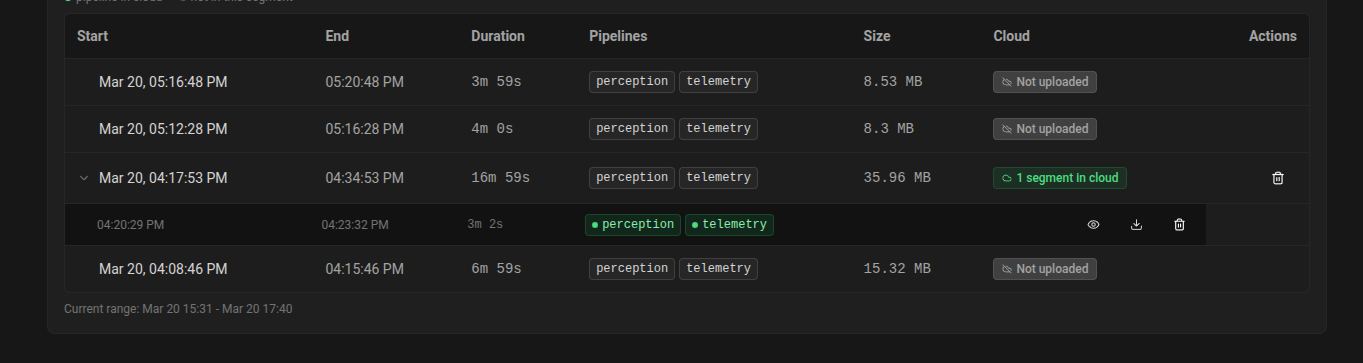
Recordings are now grouped by their recording ID. Expanding a recording reveals all its segments, each with its own details and actions. This makes it easier to manage large or long-running recordings that are split into multiple segments.
## At a glance
When you open the **Recordings** tab for a device, you'll see:
* **Timeline:** An interactive, zoomable timeline showing all available recordings for the selected time range.
* **Recordings List:** A grouped table showing all recordings, with each recording expandable to reveal its individual segments.
* **Upload Progress:** Real-time feedback on ongoing uploads to the cloud.
## Timeline
The timeline gives you a visual overview of all recordings for your device. Each block represents a recording session:
* **Green:** Fully uploaded to the cloud.
* **Amber:** Available locally, not yet uploaded.
* **Gray:** Evicted (no longer available on device).
You can:
* **Zoom and pan** to explore different time periods.
* **Select a range** by dragging on the timeline to filter the recordings list below.
* **Click a block** for details and upload options.
> **Tip:** Use the calendar button to quickly jump to a specific date.
## Recordings List
Below the timeline, you'll find a grouped table listing all recordings in the selected range. Each recording can be expanded to show its individual segments. For each recording and segment, you can see:
* **Start/End Time**
* **Duration**
* **Pipelines** (data streams included)
* **Size**
* **Cloud Status** (uploaded, uploading, queued, etc.)
### Segment Grouping
Recordings are now grouped by their recording ID. Expanding a recording reveals all its segments, each with its own details and actions. This makes it easier to manage large or long-running recordings that are split into multiple segments.
 ### Actions
* **Download per Segment:** Download any individual segment directly. If multiple pipelines are available, you can choose which pipeline to download for each segment.
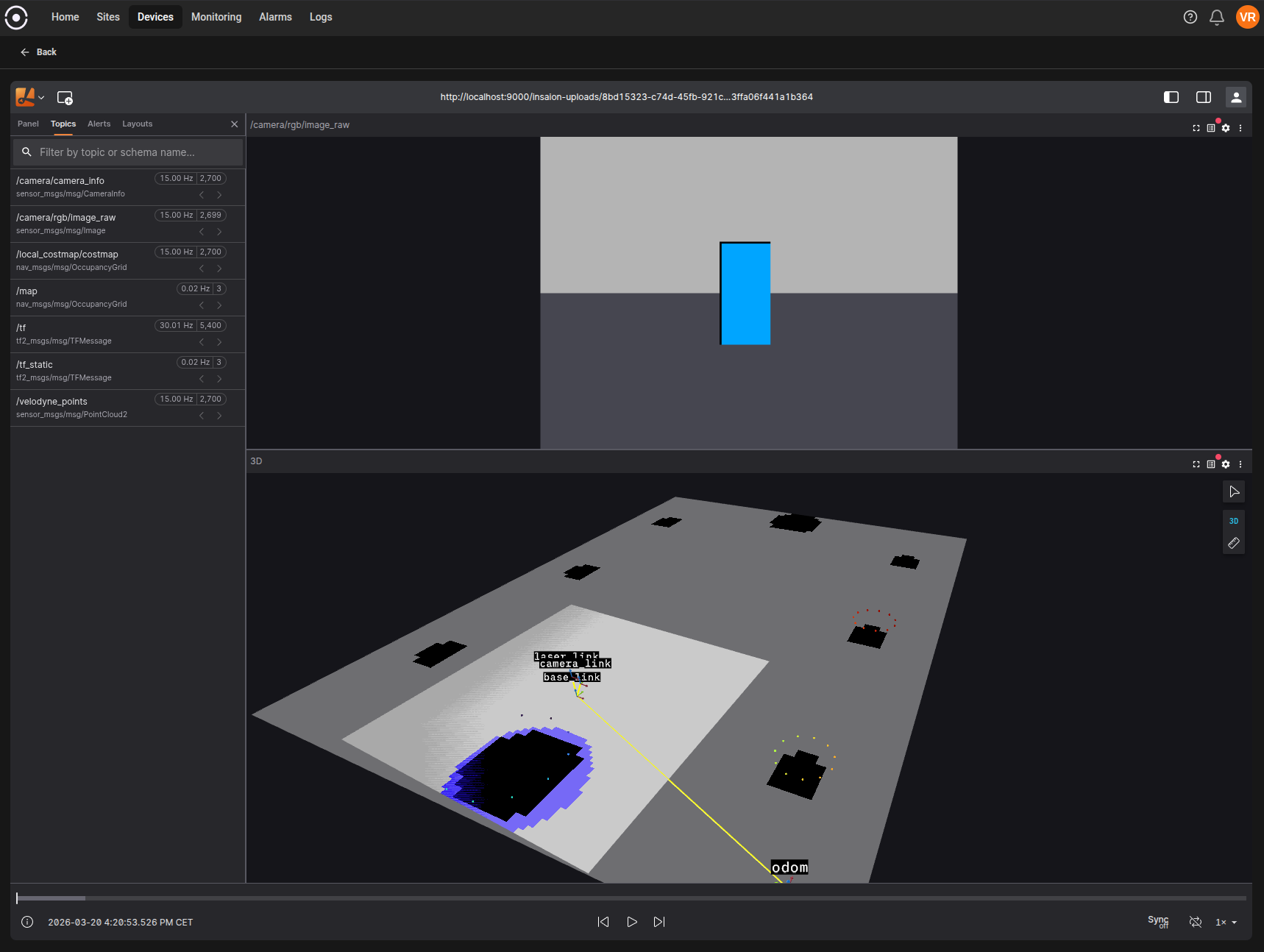
* **Visualize in Viewer:** Instantly open any segment in the embedded Lichtblick visualizer for in-browser visualization and analysis. Click the "View" action on a segment to launch the viewer.
* **Delete:** Remove a recording or a specific segment from the cloud (irreversible).
* **Upload:** If a recording or segment is not yet uploaded, you can trigger an upload from the timeline or details popover.
### Actions
* **Download per Segment:** Download any individual segment directly. If multiple pipelines are available, you can choose which pipeline to download for each segment.
* **Visualize in Viewer:** Instantly open any segment in the embedded Lichtblick visualizer for in-browser visualization and analysis. Click the "View" action on a segment to launch the viewer.
* **Delete:** Remove a recording or a specific segment from the cloud (irreversible).
* **Upload:** If a recording or segment is not yet uploaded, you can trigger an upload from the timeline or details popover.
 ## Upload Progress
Ongoing uploads are shown in a panel at the bottom corner. You can monitor progress and see when uploads complete.
## Best practices
* Regularly upload important recordings to the cloud to prevent data loss.
* Use metadata and naming conventions to keep recordings organized.
* Download recordings or segments for offline analysis or sharing as needed.
* Use the embedded Lichtblick visualizer to quickly inspect and validate your data before downloading.
## Troubleshooting
* If a recording is missing, check the selected time range and device status.
* For upload issues, ensure the device is online and has network access.
* Contact your administrator if problems persist.
## Upload Progress
Ongoing uploads are shown in a panel at the bottom corner. You can monitor progress and see when uploads complete.
## Best practices
* Regularly upload important recordings to the cloud to prevent data loss.
* Use metadata and naming conventions to keep recordings organized.
* Download recordings or segments for offline analysis or sharing as needed.
* Use the embedded Lichtblick visualizer to quickly inspect and validate your data before downloading.
## Troubleshooting
* If a recording is missing, check the selected time range and device status.
* For upload issues, ensure the device is online and has network access.
* Contact your administrator if problems persist.