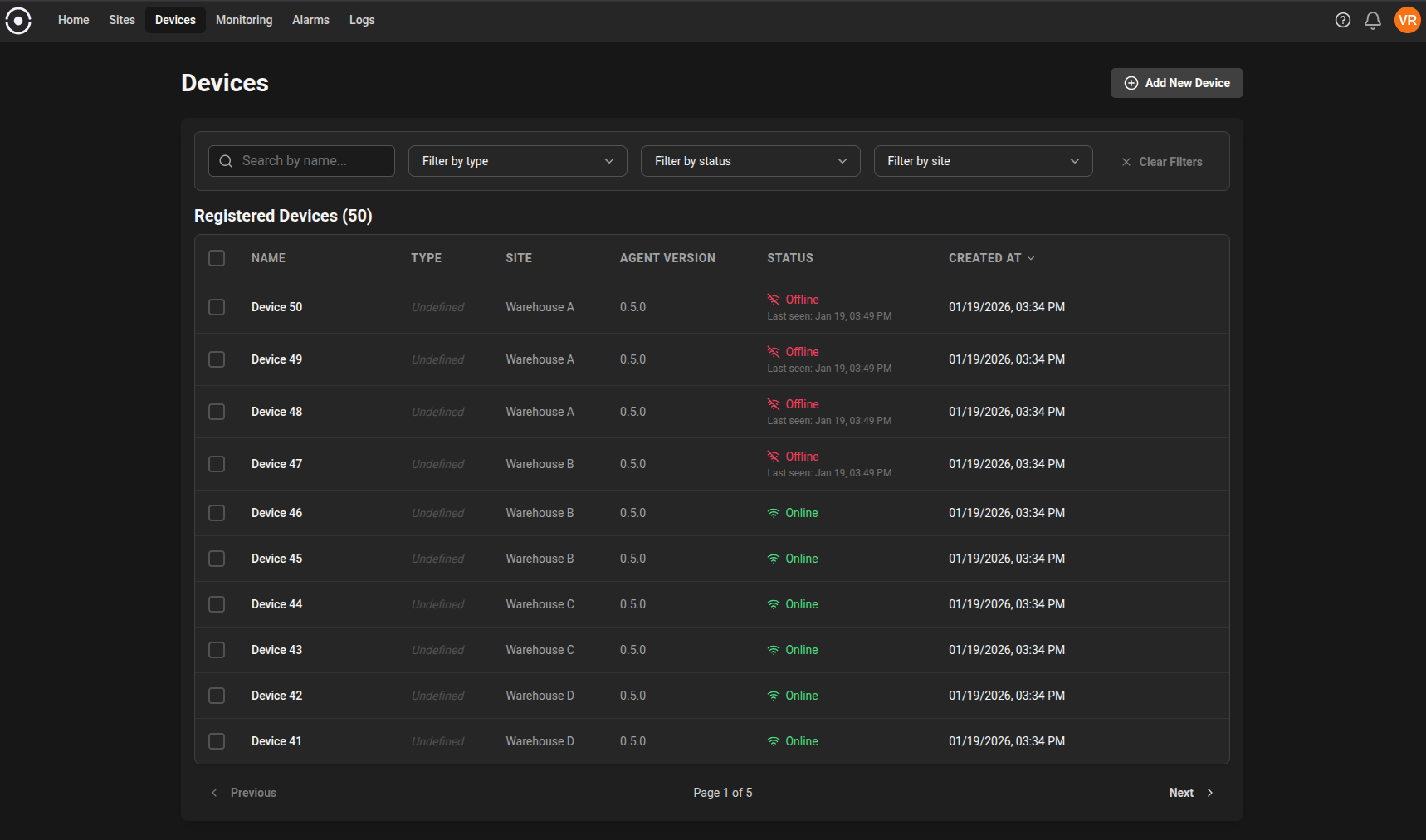
 The Devices page is the central place to monitor and manage every device that's connected to your system. A "device" is any physical or virtual unit (edge computer, sensor, robot, gateway, or embedded controller) that runs an agent and reports telemetry, status and logs back to the platform.
### What you'll see on this page
* A searchable, paginated table with one row per device. Each row shows the device's identity and key operational fields so you can quickly scan fleet health.
* Columns (default):
* **Name**: human-friendly device name.
* **Template**: the device template (if any) that defines default configuration for this device.
* **Type**: device type or model. (AMR, Drone,...)
* **Site**: the physical or logical site where the device is located.
* **Agent Version**: version of the agent running on the device.
* **Status**: online / offline with last seen timestamp.
* **Created At**: timestamp when the device was first registered.
### Filters and search
* Filter by Name, Type, Status and Site to narrow the list.
* Full-text search over device name, ID, and tags.
* Sort by Name, Site, or Created At for quick triage.
The Devices page is the central place to monitor and manage every device that's connected to your system. A "device" is any physical or virtual unit (edge computer, sensor, robot, gateway, or embedded controller) that runs an agent and reports telemetry, status and logs back to the platform.
### What you'll see on this page
* A searchable, paginated table with one row per device. Each row shows the device's identity and key operational fields so you can quickly scan fleet health.
* Columns (default):
* **Name**: human-friendly device name.
* **Template**: the device template (if any) that defines default configuration for this device.
* **Type**: device type or model. (AMR, Drone,...)
* **Site**: the physical or logical site where the device is located.
* **Agent Version**: version of the agent running on the device.
* **Status**: online / offline with last seen timestamp.
* **Created At**: timestamp when the device was first registered.
### Filters and search
* Filter by Name, Type, Status and Site to narrow the list.
* Full-text search over device name, ID, and tags.
* Sort by Name, Site, or Created At for quick triage.
 ### Device registration and automatic appearance
Registered devices appear automatically in this list as soon as they finish their enrollment or start sending heartbeats. There are two common registration paths:
* Enrollment key: generate or select an enrollment key in the Add Device wizard, then run the generated Linux install command so the systemd service registers automatically (See the [Agent installation](../agent/installation) page.).
* Pairing token: install the Linux systemd service from the Add Device wizard, then enter the generated pairing token in the device's local pairing UI.
See the [Add device](/devices/add-device) page for details on both methods.
When a device registers, it takes the default name based on the `Default Device Name Prefix` on Settings > Organization. If it is not set, the device name will be `device-xxxx` where `xxxx` is an increasing number. You can rename the device at any time in the device details view.
### Device registration and automatic appearance
Registered devices appear automatically in this list as soon as they finish their enrollment or start sending heartbeats. There are two common registration paths:
* Enrollment key: generate or select an enrollment key in the Add Device wizard, then run the generated Linux install command so the systemd service registers automatically (See the [Agent installation](../agent/installation) page.).
* Pairing token: install the Linux systemd service from the Add Device wizard, then enter the generated pairing token in the device's local pairing UI.
See the [Add device](/devices/add-device) page for details on both methods.
When a device registers, it takes the default name based on the `Default Device Name Prefix` on Settings > Organization. If it is not set, the device name will be `device-xxxx` where `xxxx` is an increasing number. You can rename the device at any time in the device details view.