 ## What you can do on this page
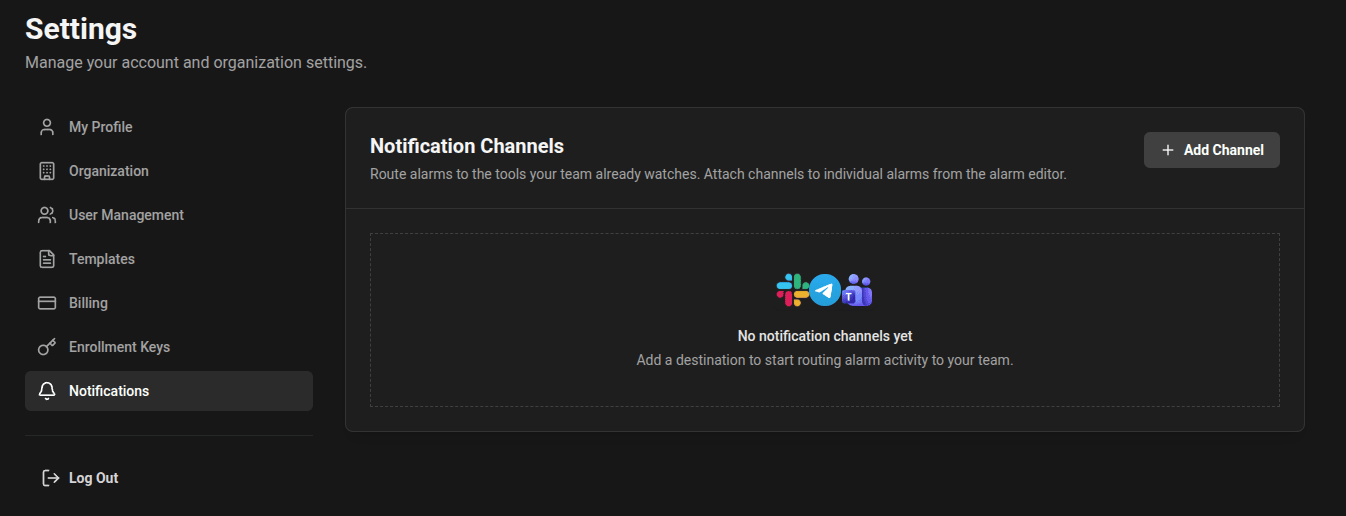
* Add channels for Slack, Telegram, and Microsoft Teams.
* Enable or disable channels without deleting them.
* Send test notifications to verify delivery.
* Edit channel names and notification behavior (such as resolve notifications).
* Remove channels no longer in use.
## Supported channel types
### Slack
* Slack uses an authorization flow from the UI (Connect Slack workspace).
* During authorization, Slack lets you choose the workspace and channel destination.
* Once connected, the channel is ready for alarm notifications.
## What you can do on this page
* Add channels for Slack, Telegram, and Microsoft Teams.
* Enable or disable channels without deleting them.
* Send test notifications to verify delivery.
* Edit channel names and notification behavior (such as resolve notifications).
* Remove channels no longer in use.
## Supported channel types
### Slack
* Slack uses an authorization flow from the UI (Connect Slack workspace).
* During authorization, Slack lets you choose the workspace and channel destination.
* Once connected, the channel is ready for alarm notifications.
 ### Telegram
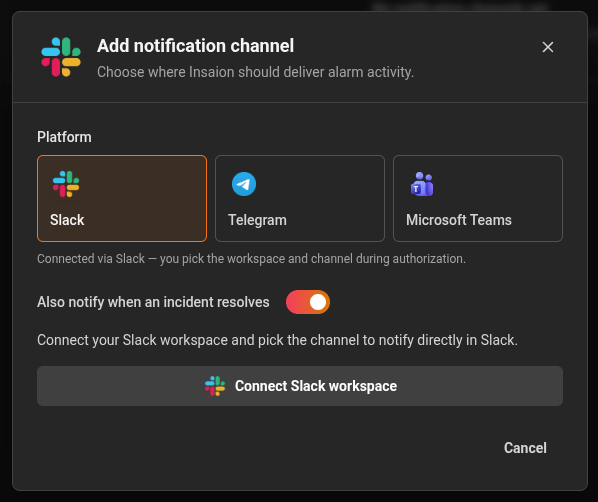
* Telegram uses the official Insaion bot connection flow.
* In the Add Channel modal, create a Telegram channel, then connect by opening Telegram or scanning the generated QR code.
* The connection link is time-limited and must be completed before it expires.
### Telegram
* Telegram uses the official Insaion bot connection flow.
* In the Add Channel modal, create a Telegram channel, then connect by opening Telegram or scanning the generated QR code.
* The connection link is time-limited and must be completed before it expires.
 ### Microsoft Teams
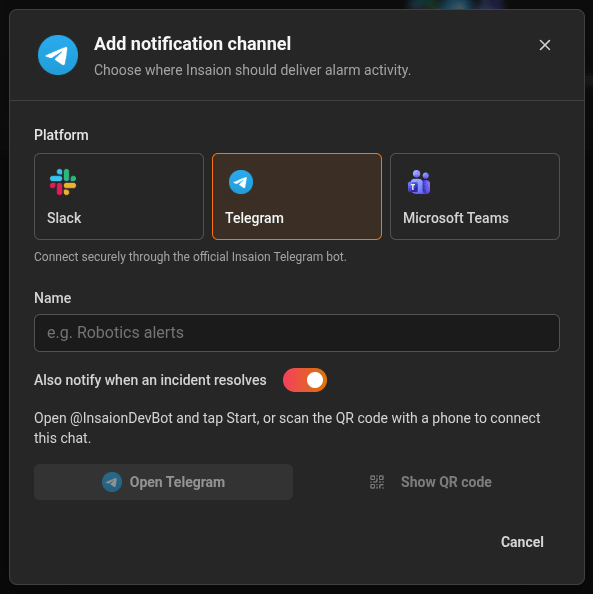
* Teams uses an incoming webhook URL configured from your target channel workflow.
* Paste the webhook URL in the channel form.
* Use Send test to validate that Teams receives the message before saving.
### Microsoft Teams
* Teams uses an incoming webhook URL configured from your target channel workflow.
* Paste the webhook URL in the channel form.
* Use Send test to validate that Teams receives the message before saving.
 ## Channel settings
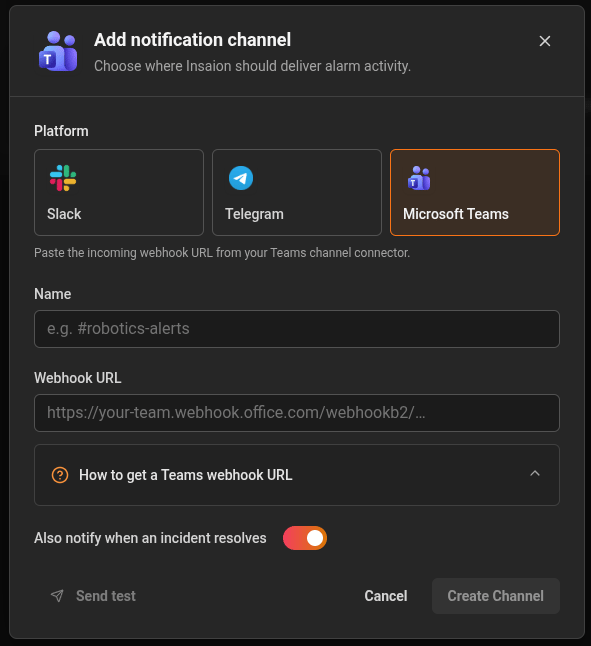
For each channel you can configure:
* Name: friendly label shown in alarm configuration.
* Enabled state: quickly pause notifications to that destination.
* Notify on resolve: send a message when incidents transition back to OK.
* Test delivery: send a test message from the channel row or modal.
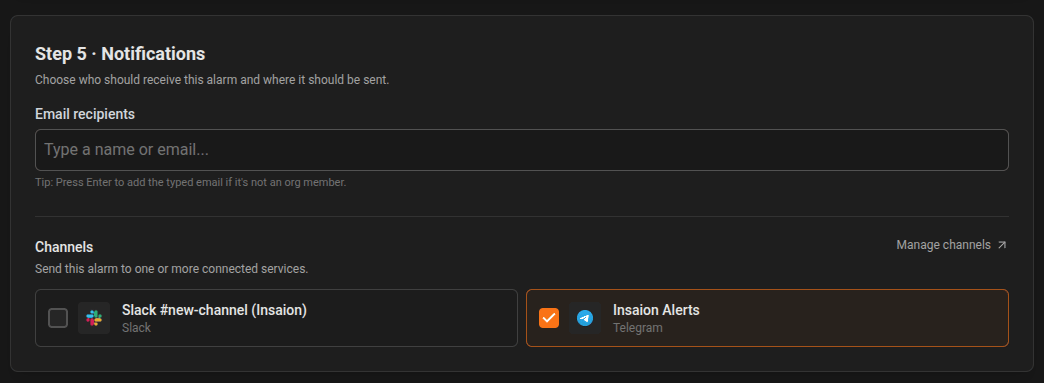
## Attach channels to alarms
After channels are configured:
1. Open Alarms and create or edit a rule.
2. In the Notifications section, select one or more channels.
3. Save the alarm.
When the alarm fires, Insaion sends notifications to the selected channels. If notify-on-resolve is enabled, a follow-up message is sent when the incident resolves.
## Channel settings
For each channel you can configure:
* Name: friendly label shown in alarm configuration.
* Enabled state: quickly pause notifications to that destination.
* Notify on resolve: send a message when incidents transition back to OK.
* Test delivery: send a test message from the channel row or modal.
## Attach channels to alarms
After channels are configured:
1. Open Alarms and create or edit a rule.
2. In the Notifications section, select one or more channels.
3. Save the alarm.
When the alarm fires, Insaion sends notifications to the selected channels. If notify-on-resolve is enabled, a follow-up message is sent when the incident resolves.
 ## Operational notes
* Channels are organization-scoped and reusable across alarms.
* Disabling a channel preserves its configuration but stops message delivery.
* Deleting a channel removes it from future deliveries; alarms that referenced it continue to run without that destination.
## Operational notes
* Channels are organization-scoped and reusable across alarms.
* Disabling a channel preserves its configuration but stops message delivery.
* Deleting a channel removes it from future deliveries; alarms that referenced it continue to run without that destination.