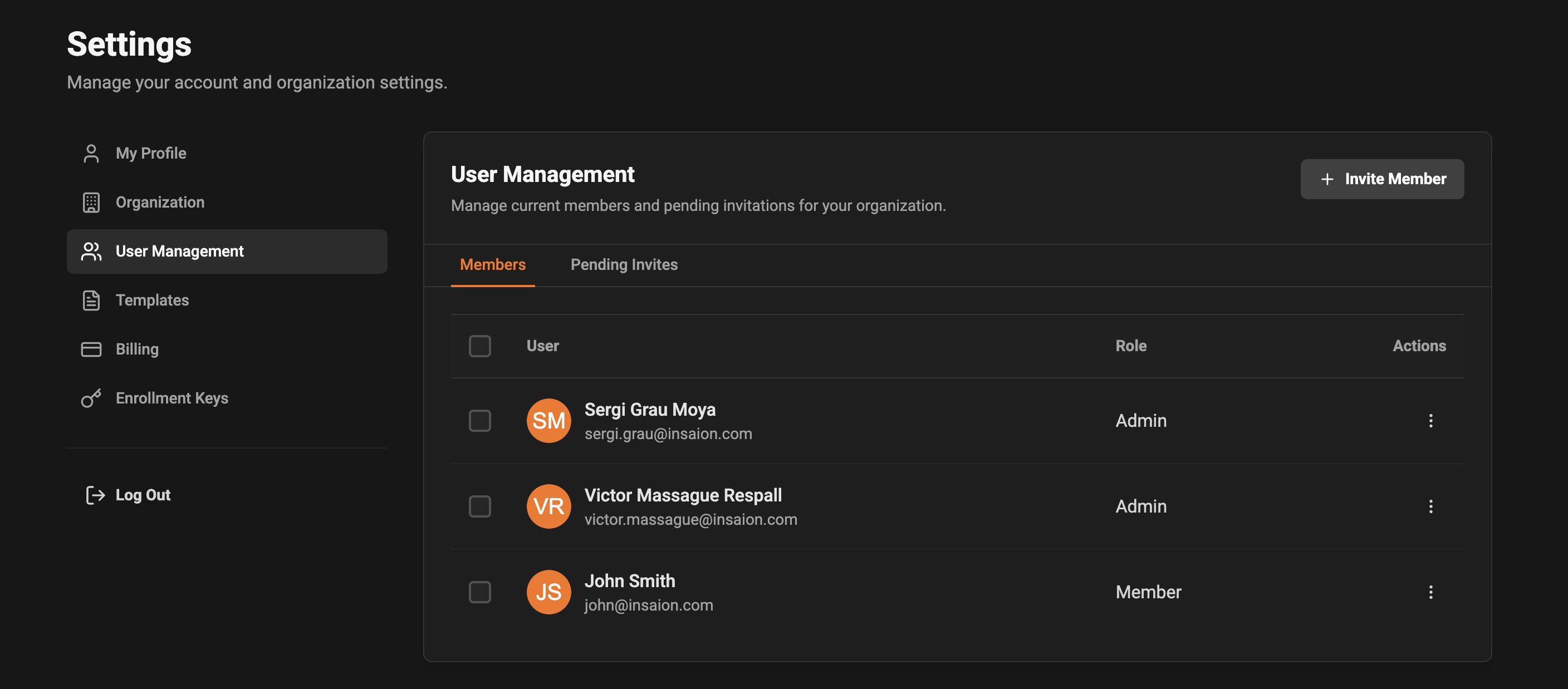
 What you can do:
* Quick look at roles — the Role column shows the role assigned to each user (for example: Owner, Admin, Member).
* Bulk selection — check the top-left checkbox to select all visible members and then use the bulk actions menu to change roles or remove users in one go.
When removing a member, you'll see a confirmation dialog asking you to confirm the action. This helps prevent accidental removals.
## Pending Invites
The Pending Invites tab lists all invitations you've sent but that haven't been accepted yet.
* Each invite shows the recipient email, the role they were invited to, when the invite was sent, and its current status (for example: pending or expired).
* Use the Actions menu next to an invite to resend it or revoke it.
What you can do:
* Quick look at roles — the Role column shows the role assigned to each user (for example: Owner, Admin, Member).
* Bulk selection — check the top-left checkbox to select all visible members and then use the bulk actions menu to change roles or remove users in one go.
When removing a member, you'll see a confirmation dialog asking you to confirm the action. This helps prevent accidental removals.
## Pending Invites
The Pending Invites tab lists all invitations you've sent but that haven't been accepted yet.
* Each invite shows the recipient email, the role they were invited to, when the invite was sent, and its current status (for example: pending or expired).
* Use the Actions menu next to an invite to resend it or revoke it.
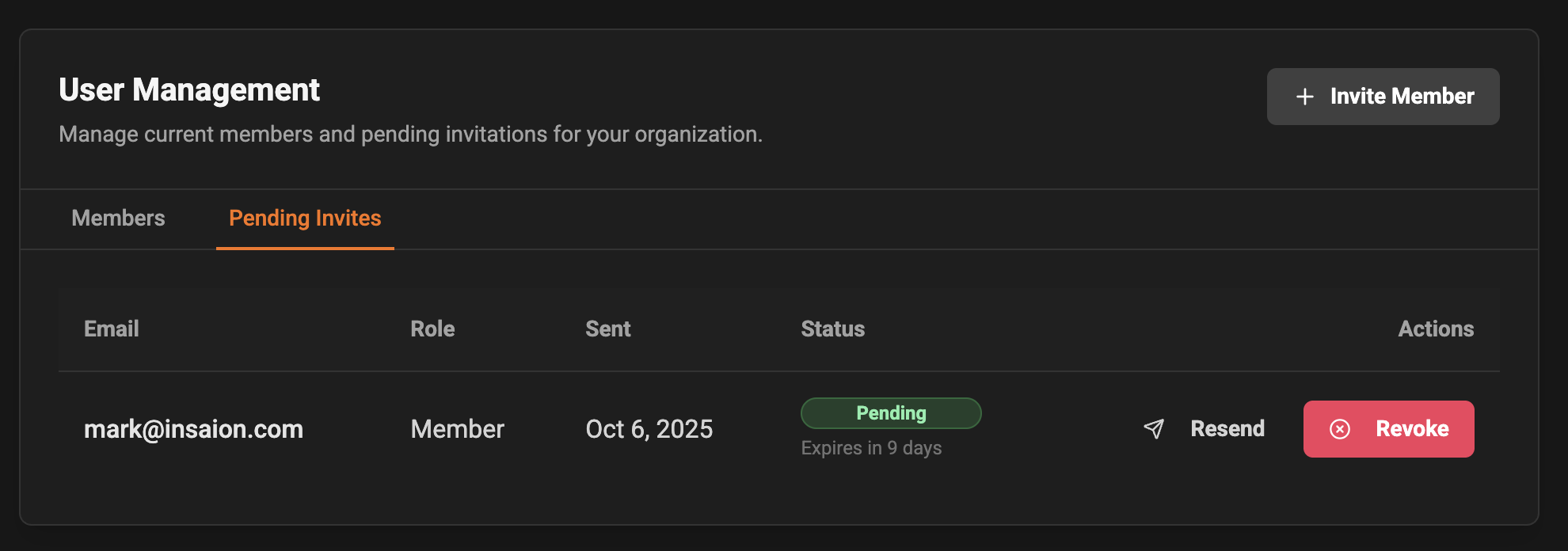 Common scenarios:
* Resend an invite if the invited person didn't receive the email or needs a fresh reminder.
* Revoke an invite if it was sent to the wrong address or is no longer needed.
## Invite a New Member
Click the "Invite Member" button to open the invite dialog. You will be asked for the new person's email and the role you'd like them to have.
* Enter a valid email address and choose a role from the Role dropdown.
* Press "Send Invite" to send an invitation email. The new invite will appear under Pending Invites until the recipient accepts it.
Common scenarios:
* Resend an invite if the invited person didn't receive the email or needs a fresh reminder.
* Revoke an invite if it was sent to the wrong address or is no longer needed.
## Invite a New Member
Click the "Invite Member" button to open the invite dialog. You will be asked for the new person's email and the role you'd like them to have.
* Enter a valid email address and choose a role from the Role dropdown.
* Press "Send Invite" to send an invitation email. The new invite will appear under Pending Invites until the recipient accepts it.
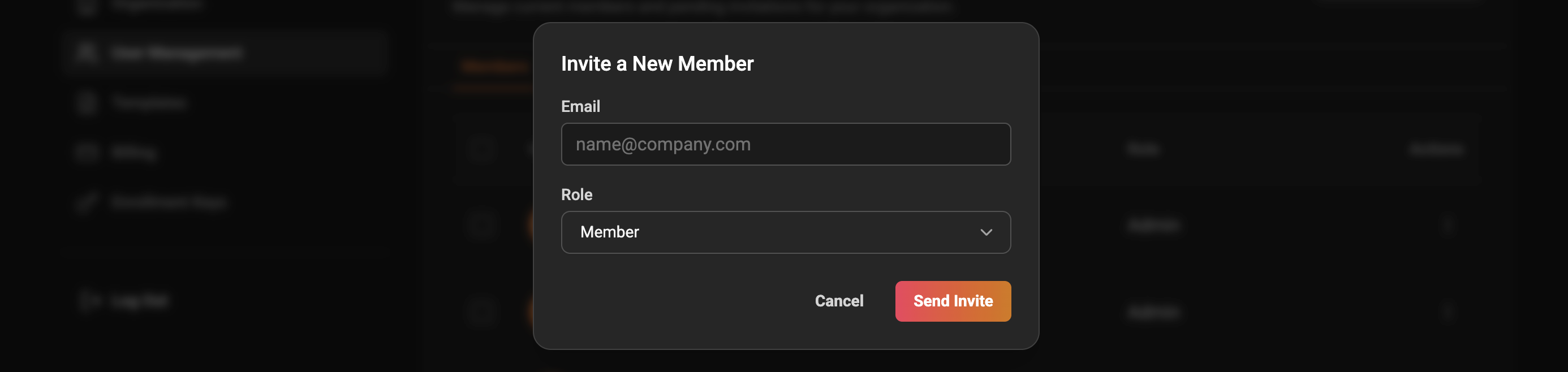 Tips:
* By default a common role (for example "Member") will be selected to make inviting faster.
* If you make a mistake while entering the email, simply cancel and try again; no invite is sent until you press "Send Invite".
## Change Role
You can change a member's role at any time. Open the Actions menu for a user and select "Change Role" to pick a new role.
* You can change the role for a single user or use the top checkboxes to select multiple users and change roles in bulk.
* After changing roles, affected users will see the permissions and access associated with their new role the next time they use the app.
Guidance:
* Think about the permissions you want someone to have before changing their role.
* Bulk role changes are useful when reorganizing teams or updating access levels for a group of people.
## Remove Members
To remove a user, select them and choose the Remove action (either from the row Actions menu or from the bulk actions menu).
* A confirmation dialog will appear to make sure you want to remove the selected member(s).
* Once removed, the user will immediately lose access to your organization.
## Accessibility & Safety
* Important actions like removing a member or revoking an invite require confirmation so changes aren't made accidentally.
* If you need help with membership or invites, contact your organization owner or the support team.
## FAQ
* Q: What if an invited user doesn't receive the email?
* A: Try resending the invite from the Pending Invites tab. Also ask the recipient to check spam/junk folders.
* Q: Can I change a role back after I update it?
* A: Yes — just open the Change Role dialog again and pick a different role.
***
Tips:
* By default a common role (for example "Member") will be selected to make inviting faster.
* If you make a mistake while entering the email, simply cancel and try again; no invite is sent until you press "Send Invite".
## Change Role
You can change a member's role at any time. Open the Actions menu for a user and select "Change Role" to pick a new role.
* You can change the role for a single user or use the top checkboxes to select multiple users and change roles in bulk.
* After changing roles, affected users will see the permissions and access associated with their new role the next time they use the app.
Guidance:
* Think about the permissions you want someone to have before changing their role.
* Bulk role changes are useful when reorganizing teams or updating access levels for a group of people.
## Remove Members
To remove a user, select them and choose the Remove action (either from the row Actions menu or from the bulk actions menu).
* A confirmation dialog will appear to make sure you want to remove the selected member(s).
* Once removed, the user will immediately lose access to your organization.
## Accessibility & Safety
* Important actions like removing a member or revoking an invite require confirmation so changes aren't made accidentally.
* If you need help with membership or invites, contact your organization owner or the support team.
## FAQ
* Q: What if an invited user doesn't receive the email?
* A: Try resending the invite from the Pending Invites tab. Also ask the recipient to check spam/junk folders.
* Q: Can I change a role back after I update it?
* A: Yes — just open the Change Role dialog again and pick a different role.
***