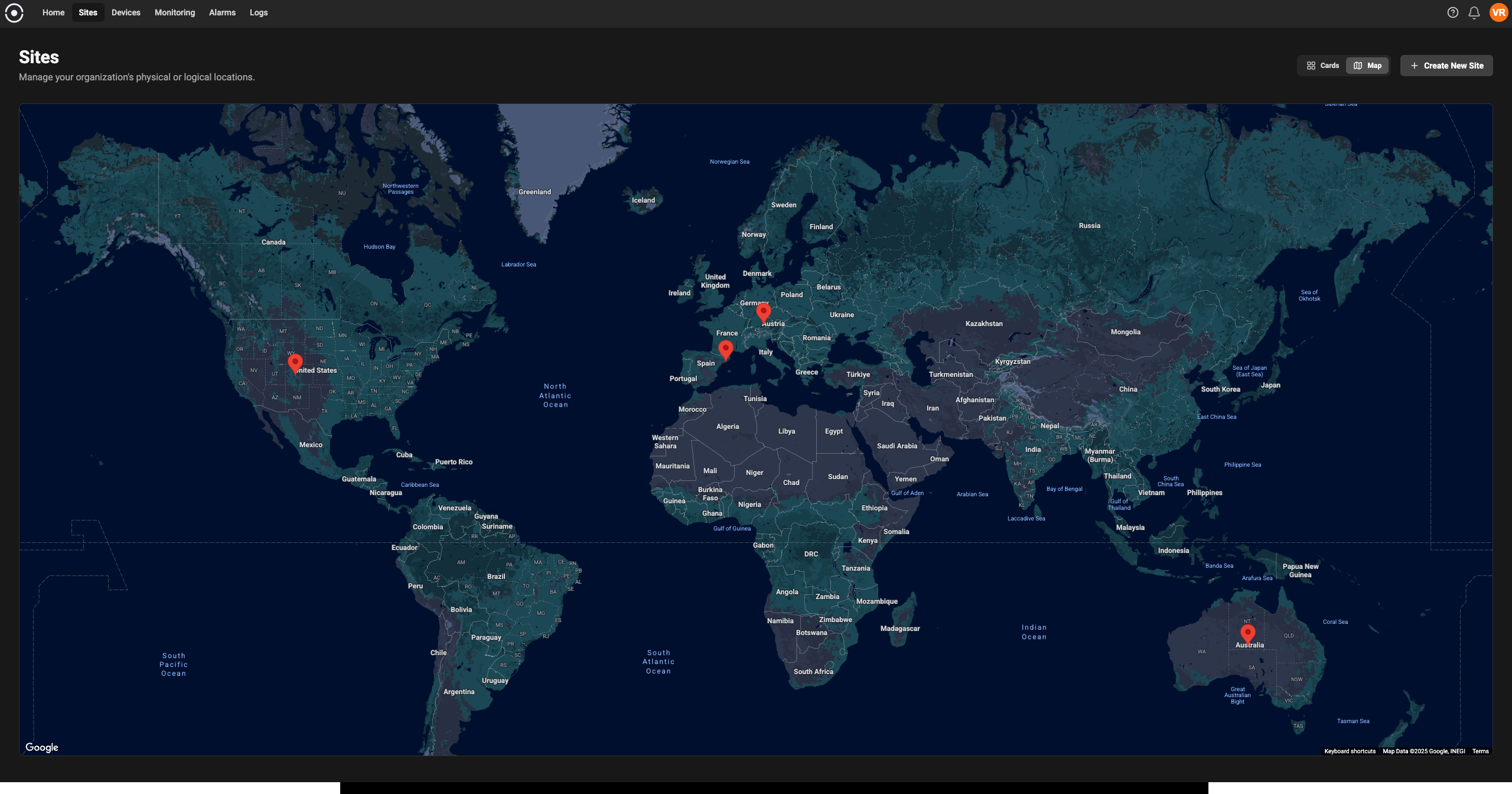
 This page explains the core concepts, typical user workflows, and practical tips for getting the most out of Sites.
## Key concepts
* Site: A container for devices and settings that correspond to a physical or organizational location (for example: a factory floor, building, or vehicle).
* Device: Any asset that connects to the platform (PLC, gateway, sensor, controller). Devices are assigned to a Site so telemetry and rules are scoped correctly.
* Agent: The software component that runs near or on devices to collect telemetry and forward it to the platform. Agents are often deployed per Site or per gateway.
* Monitoring Rule / Alarm: Conditions and thresholds applied to device telemetry. Rules are typically created at site level to trigger alerts and notifications.
* Role & Permission: Access controls that determine who can view or modify a Site and its resources.
## Typical Site workflows
The following common workflows show how Sites are used day-to-day.
### 1) Create a Site
Purpose: Register a new physical location in the platform.
Why: Sites give you the scope for searching, grouping, and applying monitoring consistently.
Example: Create a Site for "Plant 3 - Paint Line".
### 2) Add devices to a Site
Purpose: Associate physical devices with the Site so their telemetry appears in the correct context.
Tips:
* Use meaningful device IDs—include site or line prefixes if you expect many devices.
* If many devices are similar, assign a template to reduce repetitive configuration.
### 3) Deploy agents for the Site
Purpose: Ensure telemetry from devices at the Site is collected reliably.
Best practice: Pin the agent configuration in version control or deployment tooling, and use templated config files so you can redeploy quickly across multiple sites.
### 4) Use site dashboards and reports
Purpose: Provide operators and managers an at-a-glance view of site health.
What to include:
* Key KPIs (uptime, throughput, error rate)
* Device health and connection status
* Active alarms and recent events
* Topology map or floorplan links (if available)
Pro tip: Create a site-level dashboard that aggregates important metrics from device dashboards so operators don't need to open many pages.
## Example: Quick start (create-onboard-monitor)
1. Create a Site called "Warehouse A".
2. Onboard a device and assign it to "Warehouse A".
3. Install the agent on the device and configure the site ID.
4. Create a monitoring rule: if average temperature over 5 minutes > 30°C, create Alarm "High temp - Warehouse A" and notify me.
## Permissions and access control
Sites are often visible to many users but editable by a smaller set. Use roles to control access:
* Viewer: Can see assigned site dashboards and view device telemetry.
* Operator: Can acknowledge alarms and run troubleshooting steps.
* Admin: Can add/remove devices, change site settings, and deploy agents.
Best practice: Use least privilege. Give Operators the ability to interact with alarms and dashboards but keep critical configuration (templates, site deletion) limited to Admins.
## Best practices
* Standardize site naming: pick a convention (plant-line-room) and document it.
* Use templates for device consistency: reduces onboarding time and configuration drift.
* Monitor agent health separately: agent disconnection often explains missing telemetry.
## FAQs
* Q: Can a device belong to multiple Sites?
This page explains the core concepts, typical user workflows, and practical tips for getting the most out of Sites.
## Key concepts
* Site: A container for devices and settings that correspond to a physical or organizational location (for example: a factory floor, building, or vehicle).
* Device: Any asset that connects to the platform (PLC, gateway, sensor, controller). Devices are assigned to a Site so telemetry and rules are scoped correctly.
* Agent: The software component that runs near or on devices to collect telemetry and forward it to the platform. Agents are often deployed per Site or per gateway.
* Monitoring Rule / Alarm: Conditions and thresholds applied to device telemetry. Rules are typically created at site level to trigger alerts and notifications.
* Role & Permission: Access controls that determine who can view or modify a Site and its resources.
## Typical Site workflows
The following common workflows show how Sites are used day-to-day.
### 1) Create a Site
Purpose: Register a new physical location in the platform.
Why: Sites give you the scope for searching, grouping, and applying monitoring consistently.
Example: Create a Site for "Plant 3 - Paint Line".
### 2) Add devices to a Site
Purpose: Associate physical devices with the Site so their telemetry appears in the correct context.
Tips:
* Use meaningful device IDs—include site or line prefixes if you expect many devices.
* If many devices are similar, assign a template to reduce repetitive configuration.
### 3) Deploy agents for the Site
Purpose: Ensure telemetry from devices at the Site is collected reliably.
Best practice: Pin the agent configuration in version control or deployment tooling, and use templated config files so you can redeploy quickly across multiple sites.
### 4) Use site dashboards and reports
Purpose: Provide operators and managers an at-a-glance view of site health.
What to include:
* Key KPIs (uptime, throughput, error rate)
* Device health and connection status
* Active alarms and recent events
* Topology map or floorplan links (if available)
Pro tip: Create a site-level dashboard that aggregates important metrics from device dashboards so operators don't need to open many pages.
## Example: Quick start (create-onboard-monitor)
1. Create a Site called "Warehouse A".
2. Onboard a device and assign it to "Warehouse A".
3. Install the agent on the device and configure the site ID.
4. Create a monitoring rule: if average temperature over 5 minutes > 30°C, create Alarm "High temp - Warehouse A" and notify me.
## Permissions and access control
Sites are often visible to many users but editable by a smaller set. Use roles to control access:
* Viewer: Can see assigned site dashboards and view device telemetry.
* Operator: Can acknowledge alarms and run troubleshooting steps.
* Admin: Can add/remove devices, change site settings, and deploy agents.
Best practice: Use least privilege. Give Operators the ability to interact with alarms and dashboards but keep critical configuration (templates, site deletion) limited to Admins.
## Best practices
* Standardize site naming: pick a convention (plant-line-room) and document it.
* Use templates for device consistency: reduces onboarding time and configuration drift.
* Monitor agent health separately: agent disconnection often explains missing telemetry.
## FAQs
* Q: Can a device belong to multiple Sites?