

systemd service on the target device, or run as a Docker container. The systemd installation is the standard method for robots, gateways, and edge computers running Ubuntu. Docker installation is available for containerized deployments.
For systemd: The installer configures the machine, installs the agent, enables the service, and starts it automatically.
For Docker: Copy and run a generated docker run command with your configuration options.
Installation methods
Systemd installation
After installation, the device has:- A background service:
insaion-agent.service - A runtime configuration file:
/etc/default/insaion-agent - Persistent agent state:
/var/lib/insaion-agent
Docker installation
After running the docker command, you have:- A running container named
insaion-agent - Volume mounts for persistent state (
/var/lib/insaion-agent), system access (/proc,/sys,/dev), and optional ROS workspaces - Environment variables for registration and ROS configuration
Supported environment
Systemd installation
- Ubuntu Linux with
systemd - Ubuntu
22.04,24.04and26.04for generic host installs - ROS2-enabled Ubuntu systems, where the installer detects the installed ROS environment and configures the matching agent package automatically
- Outbound internet access to Insaion services and package repositories
sudoor root access
Docker installation
- Linux host with Docker installed and running
- Any Ubuntu, Debian, or compatible Linux distribution
- Outbound internet access to Insaion services and container registries
- Docker socket access (for running as privileged container)
- Optional: GPU support with nvidia-docker or
--gpusflag
Recommended workflow
- In the Insaion web app, go to Devices and click Add Device.
- Choose your installation method: Ubuntu (systemd) or Docker.
- Select an existing enrollment key, or create a new one on the spot.
- Switch on any optional settings: ROS distribution, custom workspace, DDS middleware, etc.
- Copy the generated installation command.
- Run that command on the target machine.
- Watch the Agent status block on the same page — it reports when the agent has registered, connected, and discovered topics.
The Add Device page
Everything happens on one page: pick the installation method, then scroll. The install command updates live as you change options, and the page detects your device once the agent comes online.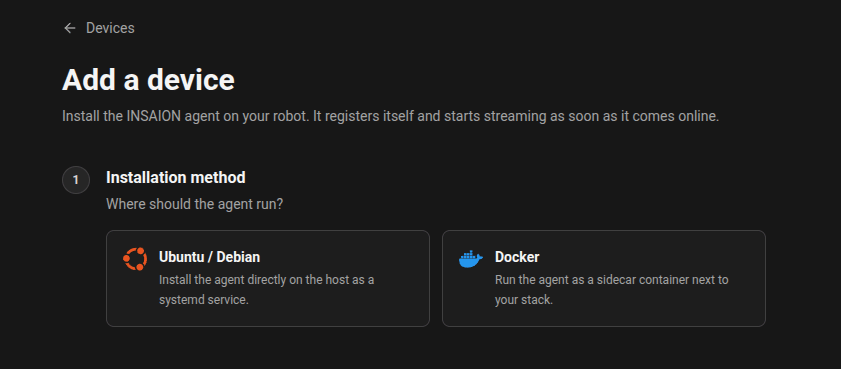
Install the agent
Systemd installation
The installer used by the dashboard is:Docker installation
The Add Device page generates a completedocker run command with your configuration. For example:
What happens during installation
Systemd installer
When you run the installer, it automatically:- Detects whether the machine is a generic Ubuntu system or a ROS2-based system
- Configures the required package repositories
- Installs agent dependencies
- Writes installation-time settings into
/etc/default/insaion-agent - Installs the Insaion Agent package
- Enables and starts
insaion-agent.service
Docker container startup
When you run the docker command, it:- Pulls the container image (if not already present)
- Creates a container named
insaion-agent - Mounts required system volumes for hardware access and ROS network configuration
- Mounts persistent storage for agent state
- Applies environment variables for registration and ROS configuration
- Starts the container in the background
Registration method
Devices register using an enrollment key.Enrollment Key
Use enrollment keys for production deployments, golden images, scripted provisioning, and fleet rollout.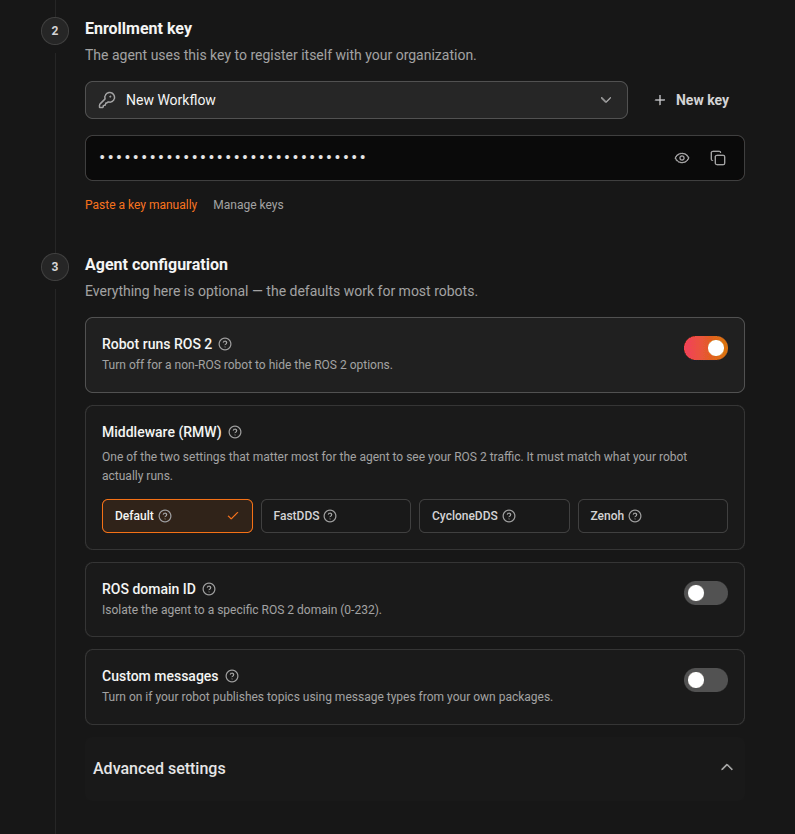
Enrollment steps
- In the dashboard, open Devices → Add Device.
- Select an existing enrollment key, or create a new one on the page.
- Copy the generated install command.
- Run the command on the device.
- The installer stores the enrollment key in
/etc/default/insaion-agent, starts the systemd service, and the agent attempts automatic registration. - After successful registration, the device appears in the Devices page.
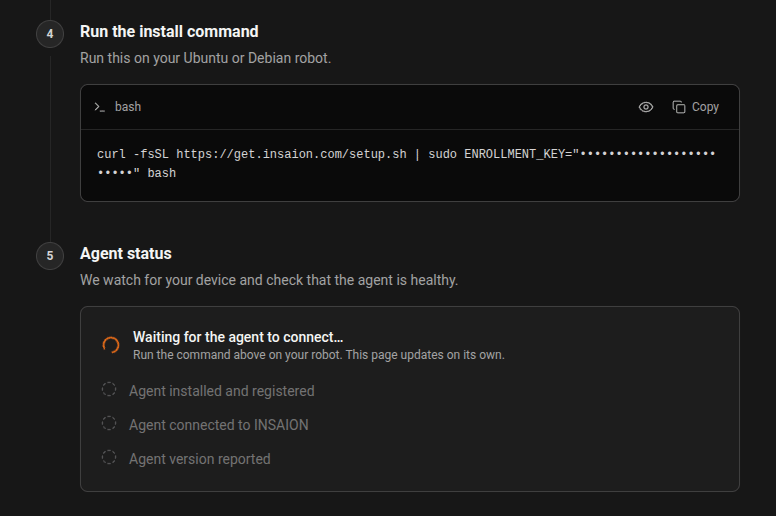
Verify enrollment
Verify installation
Systemd
Use the following checklist after install:sudo systemctl status insaion-agentshows the service as runningsudo journalctl -u insaion-agent -fshows normal startup logs- The device appears on the Devices page after registration
Docker
Use the following checklist after running the container:docker ps | grep insaion-agentshows the container as runningdocker logs insaion-agentshows startup logs with no errors- The device appears on the Devices page after registration
- Check that
/var/lib/insaion-agenton the host has writable permissions for the container
Docker-specific considerations
Required volumes and capabilities
The generated docker command includes specific mounts and capabilities needed for the agent to function:--network host: Allows the agent to communicate with the robot’s ROS network--pid host: Host PID namespace sharing for monitoring host processes--cap-add=NET_RAW: Required for certain network operations--gpus all: Passes GPU devices to the container (if available)-v /dev/shm:/dev/shm: Shared memory for ROS communication-v /proc:/host/proc:ro: Host process information (read-only)-v /sys:/host/sys:ro: Host system information (read-only)-v /etc:/host/etc:ro: Host etc directory (read-only)-v /var/lib/insaion-agent:/var/lib/insaion-agent: Persistent agent state
Custom workspace volumes
If you specify a custom ROS workspace directory when running on Docker, the generated command automatically adds a mount for it:Persistent state
The container must have a writable volume for/var/lib/insaion-agent. Ensure the host path (/var/lib/insaion-agent by default) has appropriate permissions for the container processes to write state files.
For ongoing management or issue resolution, see Agent Operations.