

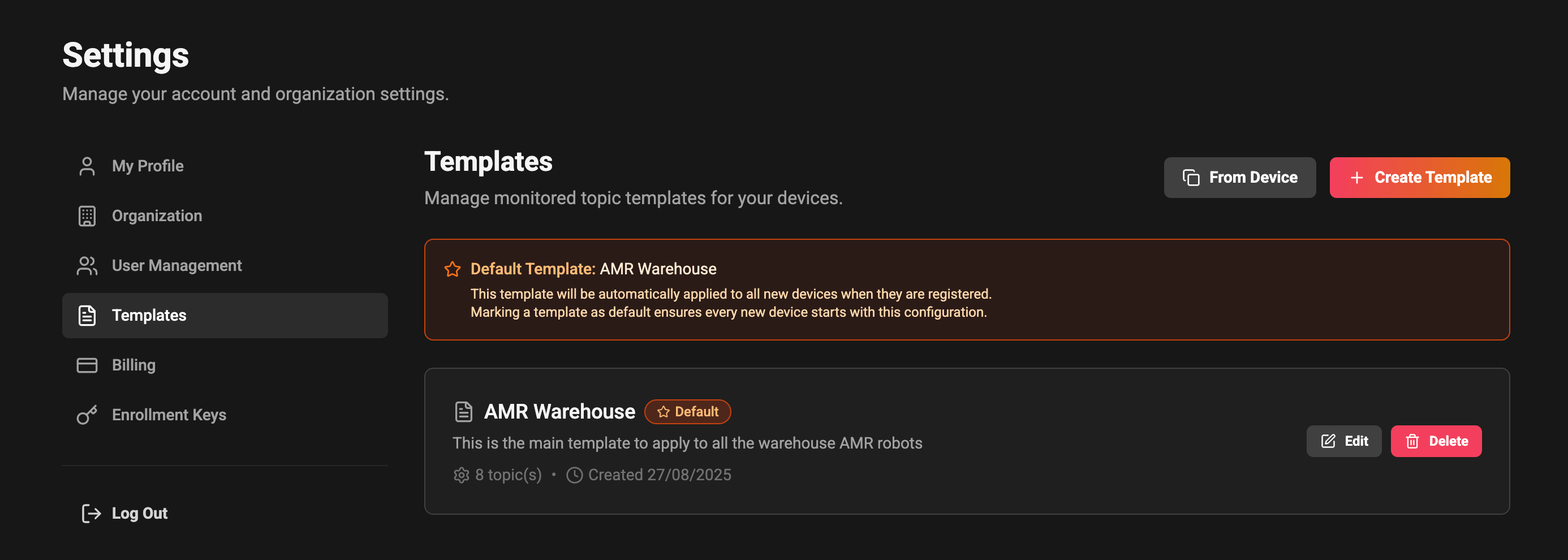
What you’ll find on this page
- A list of existing templates showing the name, description, how many topics it monitors, whether it manages recording, and the creation date.
- A clear indicator for the current default template (the one automatically applied to new devices).
- Quick actions to edit, delete, or apply a template to selected devices.
- Controls to create a new template from scratch or from an existing device configuration.
What a template covers
A template carries both halves of a device’s data collection:- Monitored topics — with their downsampling settings.
- Recording configuration — the rolling buffer’s policy, quota, recording sets and their topics and rules.
Creating a new template
- Click Create Template.
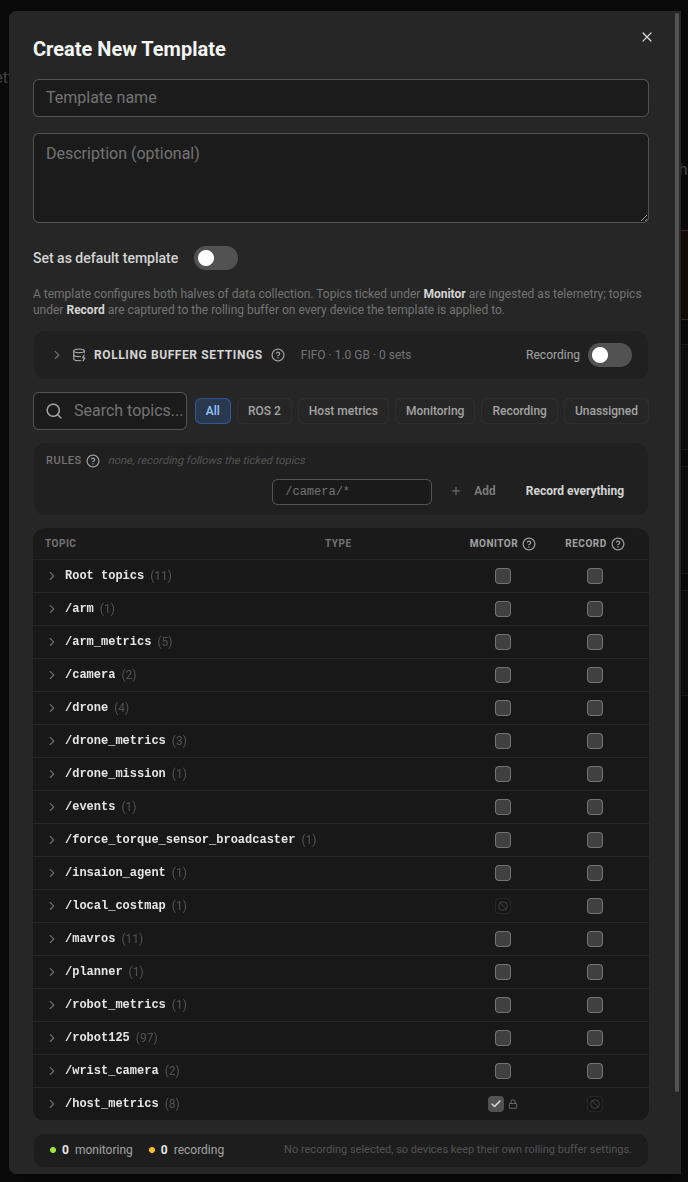
- Give the template a descriptive name and, optionally, a description so other team members know what it is for.
- Optionally toggle Set as default template to apply it automatically to all newly registered devices.
- Tick the topics to collect. The editor is the same table as the device Data Collection view: a Monitor column, a Record column, namespace groups, glob rules and the rolling buffer settings. See Device configuration for how the columns and rules behave.
- Click Create Template to save.
- The topic list is built from everything the devices in your organisation have published, so connect a device before building a template.
- A template needs at least one monitored topic or one recorded topic to be saved.
- Names should be unique and descriptive (for example, “AMR Base Model”).
- If you mark a template as default, it is used for every new device registered after that change.
Editing a template
- Find the template in the list and click Edit.
- Update the name, description, default flag, monitored topics, or recording configuration.
- Save your changes with Update Template.
Deleting a template
- Click Delete on the template you want to remove.
- Confirm the deletion in the confirmation dialog.
Applying a template to devices
From a single device:- Open the device’s Config tab → Data Collection.
- Click Assign Template.
- Pick a template. Each row previews what applying it would do — how many topics it monitors, how many it records, or
recording untouchedwhen it does not manage recording. - Click Apply template.
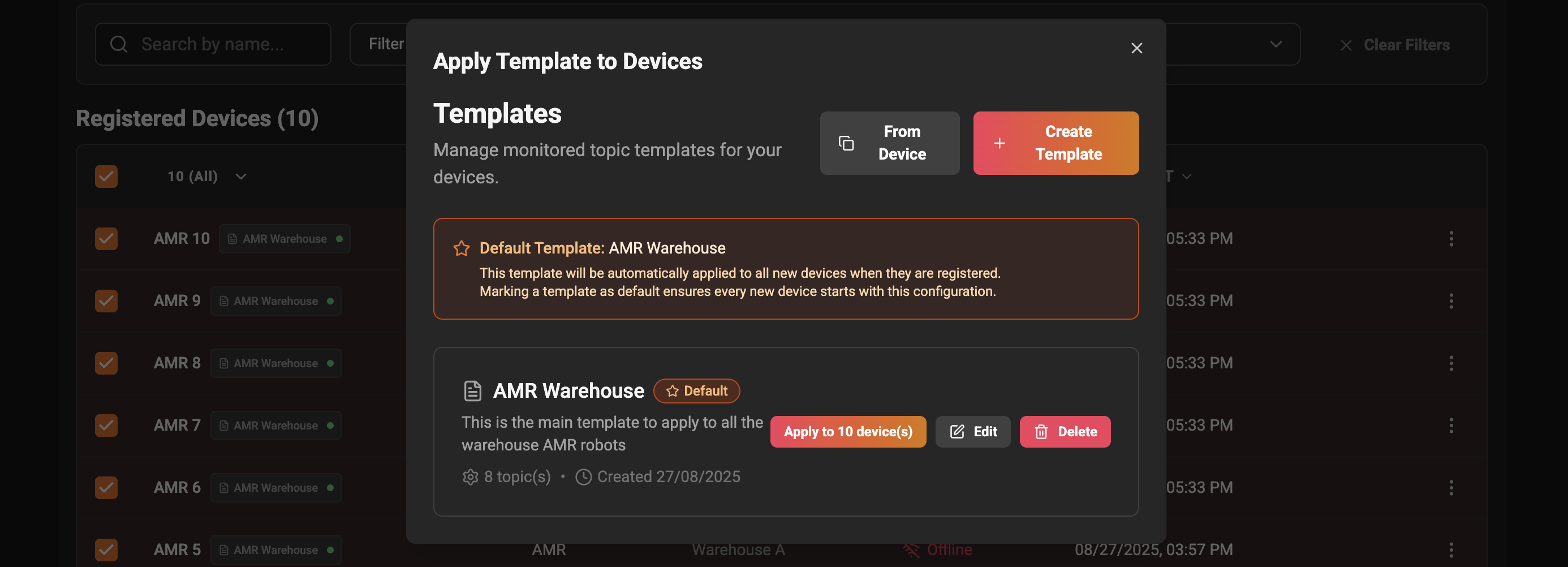
- Select the devices you want to configure.
- Open the group menu and choose Assign Template.
- Apply the template you want.
- Host metrics are added, whatever the template contains.
- Message types that cannot be ingested as telemetry (
sensor_msgs/msg/Image,PointCloud2,OccupancyGrid, and similar) are skipped in the Monitor half. They are still recorded if the template records them.
Create a template from a device’s configuration
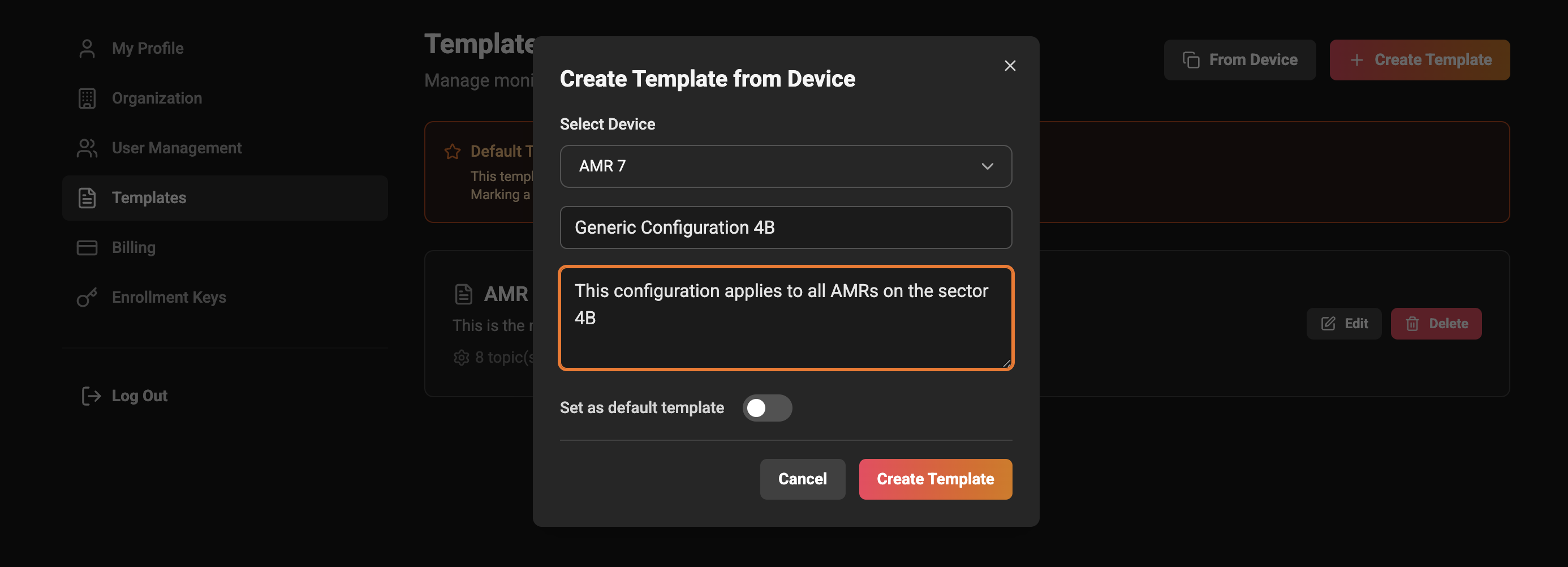
If a device is already configured the way you want:- Click From Device.
- Choose the device whose configuration you want to save.
- Enter a name and optional description.
- Optionally set it as the default template and save.
Default template behavior
- The default template is applied automatically to new devices when they register.
- Only one template is default at a time. Setting a new default replaces the previous one.
- Existing devices are not changed when you change the default. Use Apply to update already-registered devices.
Tips and best practices
- Use clear, consistent naming (include device type and purpose).
- Keep templates focused and reusable — a base template for common telemetry, specialised ones for particular sensor loads.
- Prefer glob rules such as
/camera/*in the Record column over long lists of individual topics. A rule keeps working when a robot gains a new topic in that namespace. - Use From Device or Export Template to capture a working configuration, then refine it.
FAQ
-
Can I preview what will change on a device before applying a template?
Yes. The Assign Template dialog shows, per template, how many topics it monitors and records before you apply it. For a full row-by-row review, apply it to a test device first. -
What happens to device data when I apply a new template?
Applying a template updates what a device monitors and records from that point on. Historical data is not deleted, but future collection follows the new rules. -
Does a template without recording turn recording off on my devices?
No. A template only manages recording when it captures at least one topic or rule. Otherwise each device keeps its own rolling buffer settings. -
Why is a topic I selected missing from the saved template?
Template topics are matched to the schema of a topic some device has published. If no device is publishing it any more, its schema is unknown and it cannot be stored as a template row — the page warns you when this happens. Use a glob rule for the Record half instead.