

key:value pairs that describe a device, such as customer:acme, software_version:1.4.2 or env:production. You set some of them yourself, and the agent reports others on its own. Every tag keeps its history, so Insaion knows which value a device had at any moment.
The same tags, and the same way of writing filters, work across the app:
- Devices: search the fleet, count devices per value, show tags as columns and edit tags on many devices at once.
- Dashboards: filter every panel by tag, add a picker per tag, group charts by tag and mark when a tag changed.
- Compare panel: put two tag values, or two periods, side by side. See Compare panel.
- Alarms: choose which devices an alarm watches, and put tags in notification messages.
- Incidents: see the tags a device had when an incident opened, and what changed in the 24 hours before.
- Recordings: find recordings by the tags their device had when they were recorded.
- Copilot: incident analysis receives the device’s tags and recent tag changes.
Kinds of tags
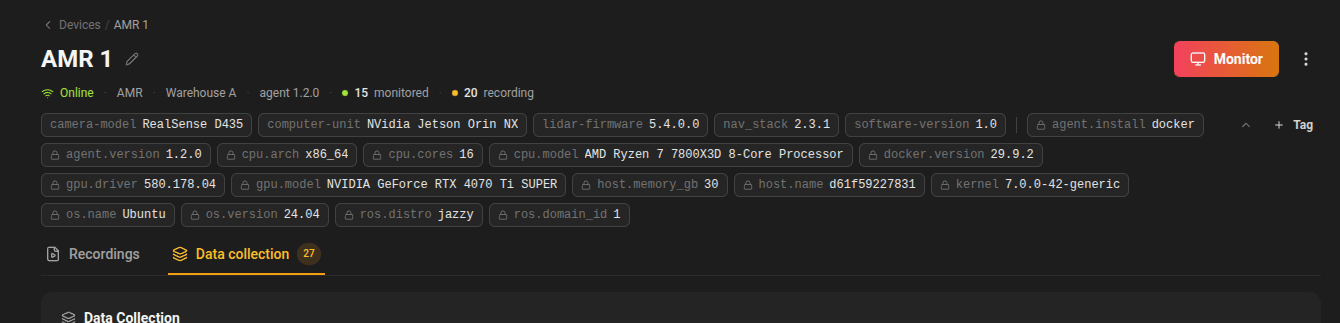
Detected tags
The agent reports facts about the device each time it connects. You can filter, group and compare on them like any other tag, but you can’t change them by hand.
Keys starting with
os., host., kernel, ros., agent., container., gpu., cpu. or docker. are reserved for the agent.
Built-in keys
Built-in keys come from the device record rather than from tags, but you write them in filters the same way:site: the site the device is assigned to.-has:sitefinds unassigned devices.name: the device name.type: the device type, such as AMR or Drone.status:online,offlineorpending-setup(Devices page only).update:needs-update,up-to-dateorunknown-version, the agent update state (Devices page only).
Naming rules
- Keys use lowercase letters, digits and
_ . / -, start with a letter, and are at most 63 characters long. - Values can be up to 200 characters. Matching ignores case.
- Each device has at most one value per key at a time. Setting a new value ends the old one.
Tags on a device
Open a device to see its tags at the top of the page, grouped into your own tags and the ones the agent detected. Click the arrow to show all of them.Add a tag
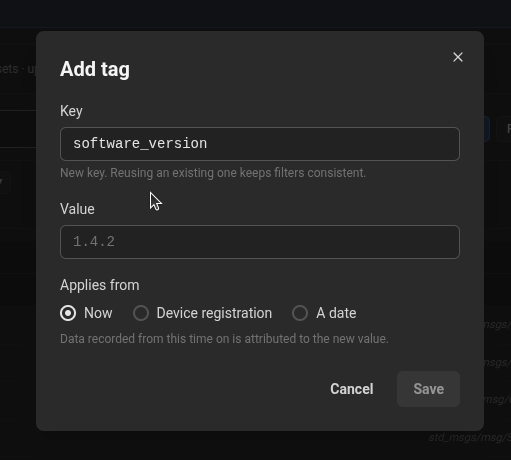
- Click + Tag.
- Type a key and a value. Existing keys and values are suggested as you type.
- Choose when the tag applies from:
- Now.
- Device registration, to say the device has always had this value.
- A date, to record a change that happened earlier, such as a software update rolled out last Tuesday.
- Click Save.
History, change and remove
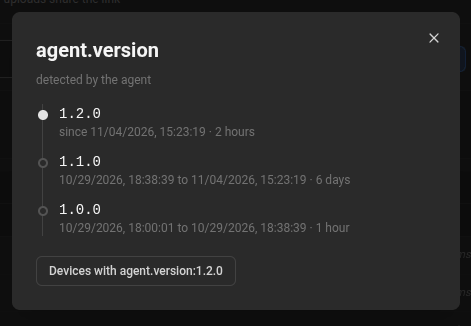
Click any tag to open its history: every value the key has had, when it started and ended, and who set it. From there:- Change value sets a new value, from now or from a date you choose (Changed at).
- Remove ends the tag now. The history keeps the values it had.
Tags on the Devices page
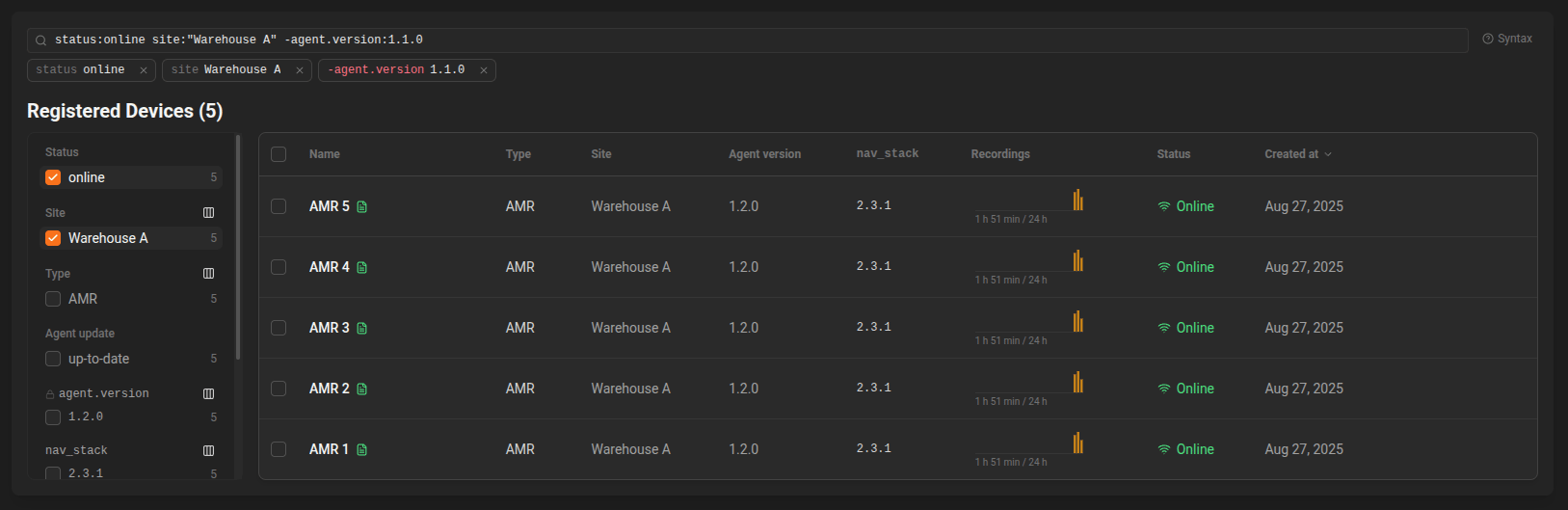
The Devices page uses tags to find and organize the fleet.- Search bar: type plain words to search device names, and conditions such as
site:barcelona ros.distro:jazzy -customer:internalto filter. Press space or Enter to turn a condition into a chip. Click Syntax for a cheat sheet. - Facets: the sidebar lists status, site, type, agent update and every tag key, with the number of devices per value. Click a value to add it to the search, and click it again to remove it. The counts update as you filter.
- Columns: use the column toggle next to a key in the sidebar to show that tag as a table column.
- Edit tags on many devices: select devices with the checkboxes, then choose Edit Tags from the bulk actions menu. Choose Set a tag or Remove a tag, and when the change applies: now or a date.
Filter language
Every tag filter in the app (Devices search, dashboard filters, panel Where, alarm scope, Compare scope and Recordings search) accepts the same syntax.
A space between conditions means AND. Matching ignores case.
Device tags and data tags
Panel queries can filter on two kinds of tags:- Device tags are the tags on this page. In dashboards, Compare and Recordings they apply as they were when the data was recorded, so a robot upgraded on Tuesday counts as
1.4.1before Tuesday and1.4.2after. On the Devices page and in an alarm’s device list, they match current values. - Data tags belong to each data point, such as
cpu:cpu-totalon a CPU metric orseverity:ERRORon a log. They filter the points of one metric, not which devices are included.
Where tags are used
Dashboards
- Dashboard filters above the panels apply to every panel on the dashboard. Click + Variable to add a picker for one tag key, so viewers can switch between values without editing panels.
- Where in a panel’s query keeps only data from devices, or points, with those tags. You can refer to a dashboard variable, for example
software_version:$software_version. - Group by in a panel’s query accepts any device tag, so a chart can draw one line per customer or per software version.
- Tag change markers: turn on Show Tag Changes under Markers in a Timeseries panel to mark when a tag such as
software_versionchanged on the devices in the panel. By default this covers your own tags plusagent.version. - Device dashboards show the device name and its tags in the header.
Alarms and incidents
- An alarm’s Where decides which devices it watches, with a live count of how many devices match now. See Create an alarm.
- Notification messages can include
{{tags.<key>}}and{{tags.changes_24h}}. - Each incident keeps the tags its devices had when it opened, and the tag changes from the 24 hours before. See Incidents.
Recordings
The Recordings page has one search bar with the same syntax. Robot recordings match the tags their device had when each recording started. Manually uploaded files match their own tags and the device tags saved with them. You can addkey:value tags to a manual upload in its details panel, for example scenario:docking.
Copilot
When Copilot analyzes an incident, it receives the device’s tags and the tag changes from the 24 hours before, so it can point out that a problem started right after a software update.Best practices
- Agree on a small set of keys across the team, such as
customer,software_version,envandhardware_rev, and reuse them. - Set
software_version(or your own release key) every time you roll out an update, with the real rollout time. It is what makes before and after comparisons and tag change markers useful. - Use A date when you record a change after the fact, so the history matches what happened on the robot.
- Prefer tags over device names for grouping. Names change; tags carry history.