

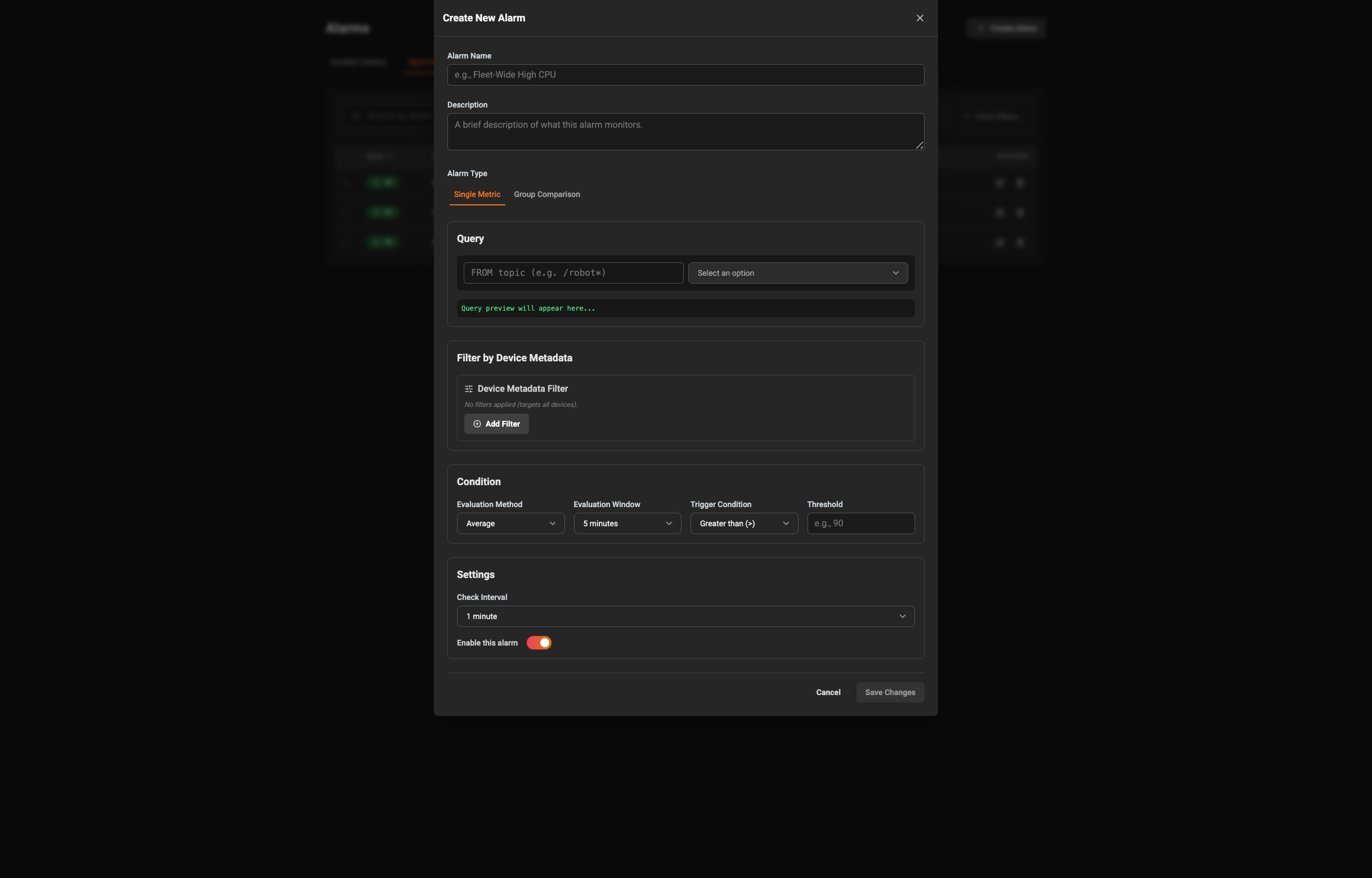
What you’ll see on the form
- Alarm Name: A short, descriptive name that helps you and your team understand what this rule monitors.
- Description: A longer, optional note describing the purpose of the alarm and suggested actions when it fires.
- Alarm Type: Choose Single Metric, Group Comparison, or Log Threshold. Log Threshold alarms evaluate matching log volume, unique attributes, or numeric measures.
Build the query (what to watch)
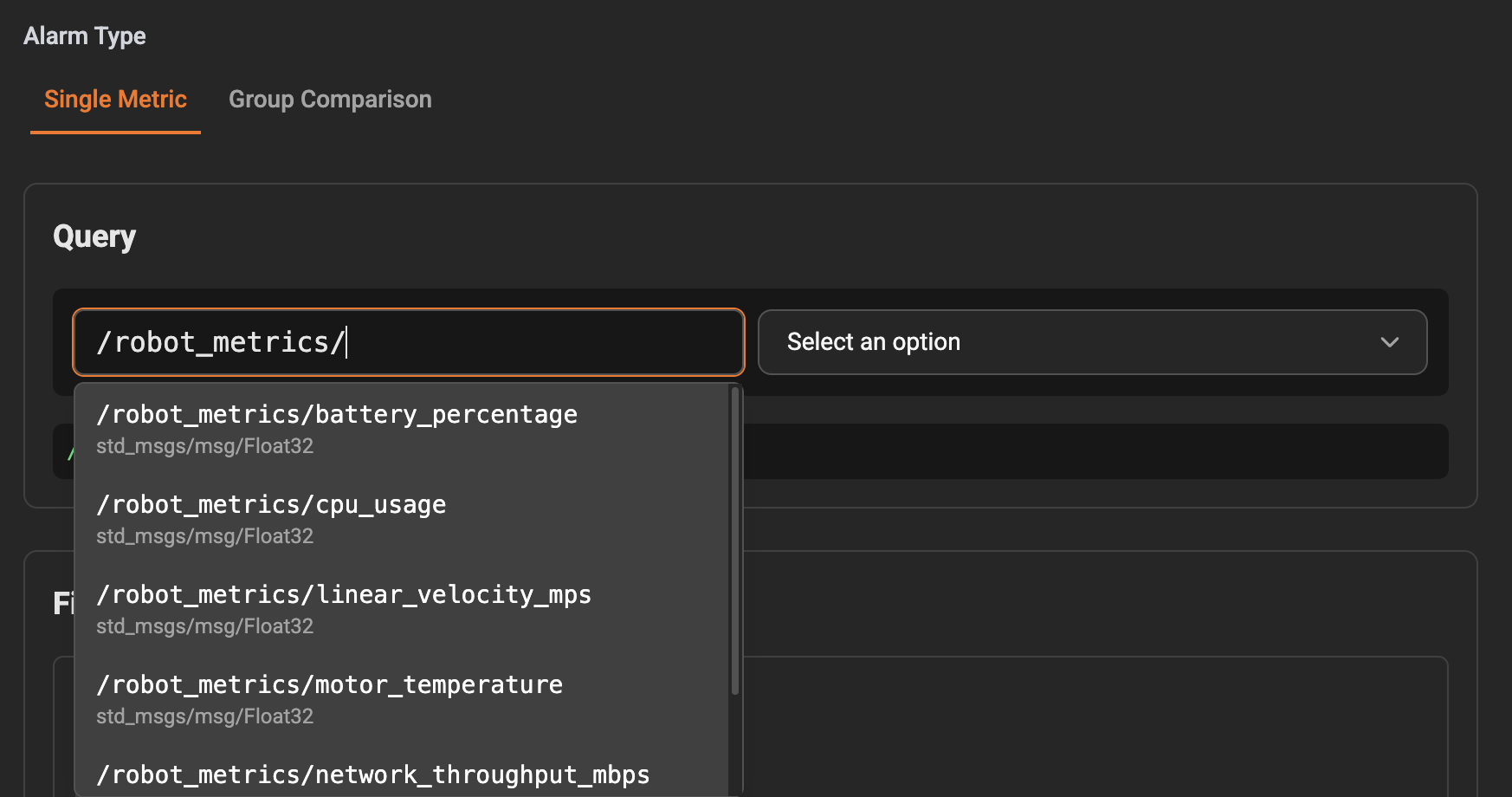
The form asks for a few pieces to identify the data the alarm should watch:- Topic Pattern: The stream or topic pattern the rule looks at (the app may suggest common patterns).
- Schema and Field: Select the data schema and the specific field you want to evaluate (for example “temperature”).
- Tags (optional): Add tags to limit the scope further (useful when you have many data series under the same topic pattern).
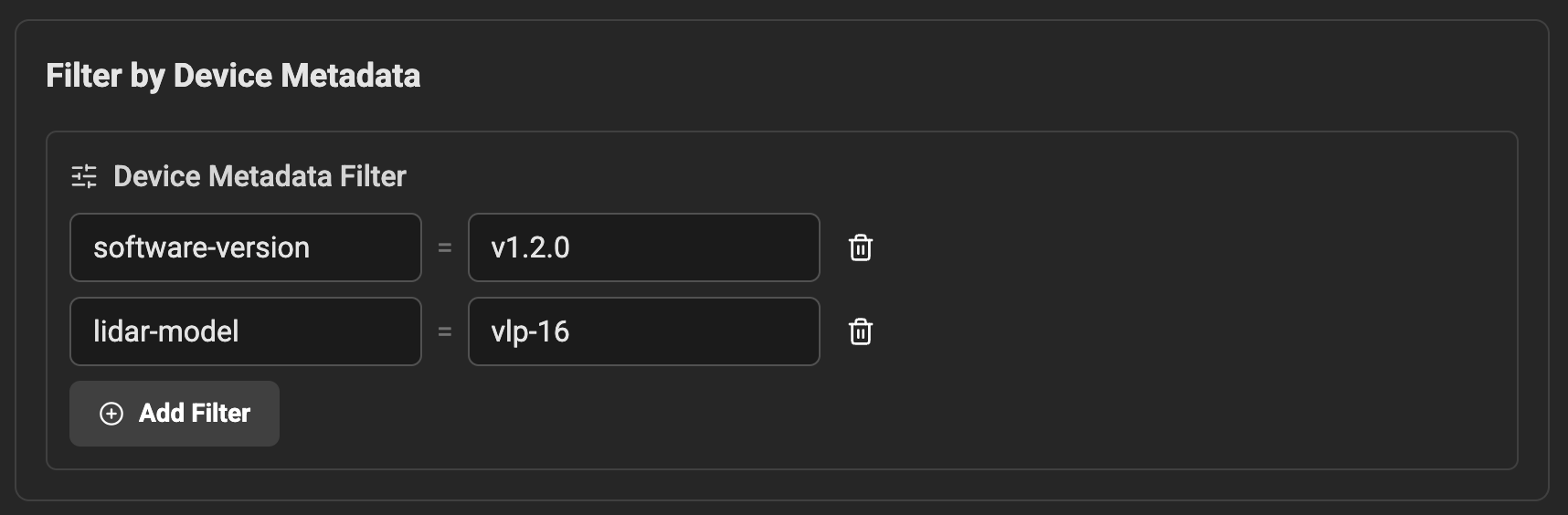
Filters (target specific devices)
If you don’t want the alarm to run for every device, add device metadata filters. These let you target only devices with certain properties — for example, a specific model, location, or customer.- For Single Metric alarms: add a single metadata filter that all matched devices must satisfy.
- For Group Comparison alarms: define filters for Group A and Group B so the system can compare the two sets.
Condition (when should it fire)
Set the condition that will trigger the alarm:- Evaluation Method: Choose whether the alarm looks at the latest single value or an aggregation (average, sum, min, max) across a time window.
- Evaluation Window: When using aggregated methods, set how long the system should look back (e.g., 5 minutes).
- Trigger Condition: Single Metric alarms support greater-than, less-than, exact equality, and inequality. Group Comparison also supports percentage comparisons.
- Threshold: The numeric value that will cause the alarm to trigger when the condition is met.

Log threshold alarms
Log threshold alarms reuse the monitoring query builder, so the source, topic, field, tag filters, and text filters behave like log queries on the Monitoring page. Text filters support contains, does not contain, and regular expression matching. Choose one compute mode:- Count matching logs: Counts entries for the selected log field.
- Unique attribute values: Counts distinct values of the selected field or a tag written as
tag:key. - Numeric measure: Aggregates a numeric field with average, sum, minimum, maximum, median, p75, p90, p95, p98, or p99.
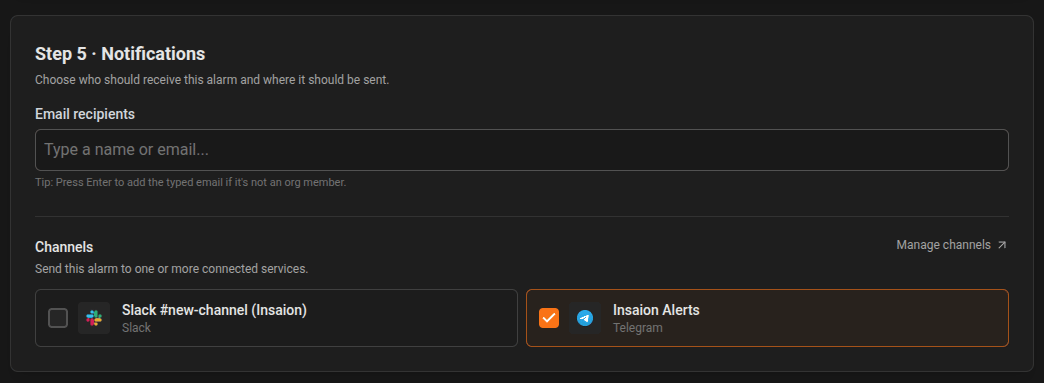
Notifications (third-party channels)
You can route alarm events to connected third-party channels directly from the alarm form.- Channel selection: choose one or more connected channels (Slack, Telegram, or Microsoft Teams).
- Reuse destinations: channels are managed centrally in Settings and can be reused across multiple alarms.
- Resolve behavior: if a selected channel has notify-on-resolve enabled, it receives both firing and resolved messages.

Settings
- Evaluate as soon as data arrives: When enabled, the alarm is checked within about a second of the data reaching the cloud, instead of waiting for the next scheduled check. Recommended for safety-critical conditions.
- Reaction Speed: Only shown when the above is enabled. The alarm is evaluated at most once per window however many devices are reporting, so a faster window reacts sooner and a slower one costs less on large fleets.
- Check Interval: How often the rule is evaluated (for example every 60 seconds). Shorter intervals give faster detection but may increase load. When “Evaluate as soon as data arrives” is on this becomes the Heartbeat Interval: a backstop check that still runs when no data arrives at all. It is what detects a missing-data condition and what resolves an incident after a device goes quiet, so it stays in effect either way.
- Enable toggle: Decide whether the alarm should be active immediately after saving.
Save and cancel
Use the Save button to create the alarm. If a required field is missing the app will highlight it and prompt you to complete the form. Use Cancel to close the form without saving changes.Practical tips
- Name alarms clearly and include a description with recommended next steps (who to contact, where to check, etc.).
- Start with conservative thresholds and test a rule in a limited scope before enabling it fleet-wide.
- Use metadata filters to reduce noise and focus on meaningful groupings of devices.