

At a glance
When you open a device’s details page you’ll find:- The device header with the device name, type (if any), Site (if any), a live status indicator (Online / Offline) and a description.
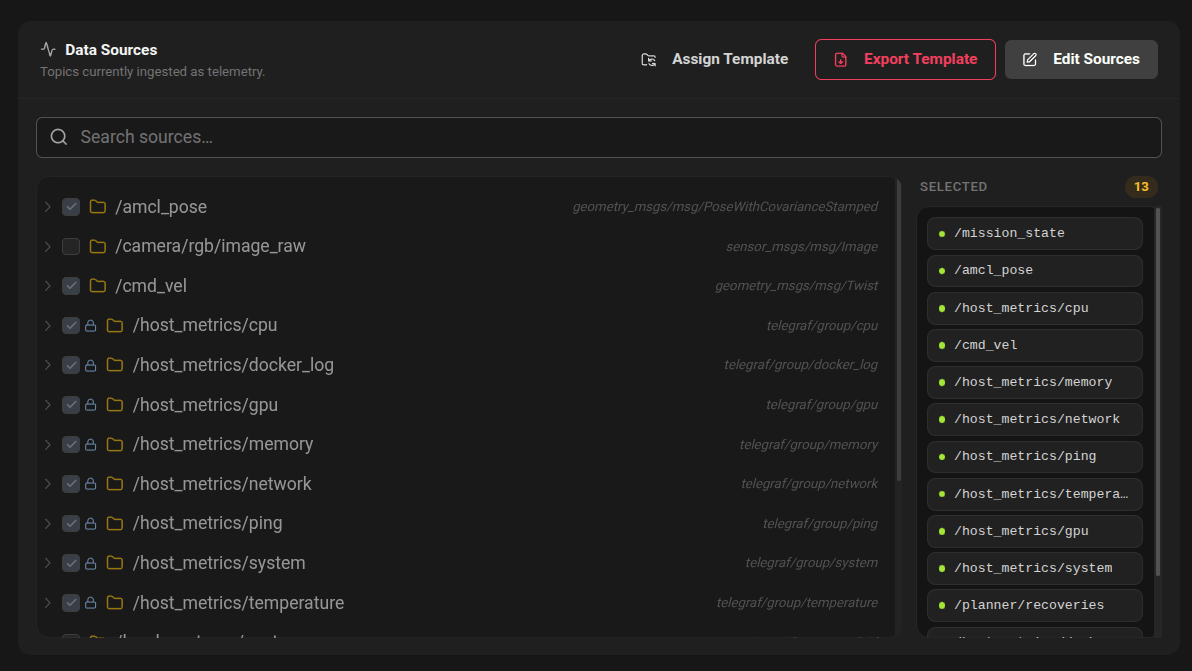
- Sources discovered automatically from the device (Host metrics and ROS2).
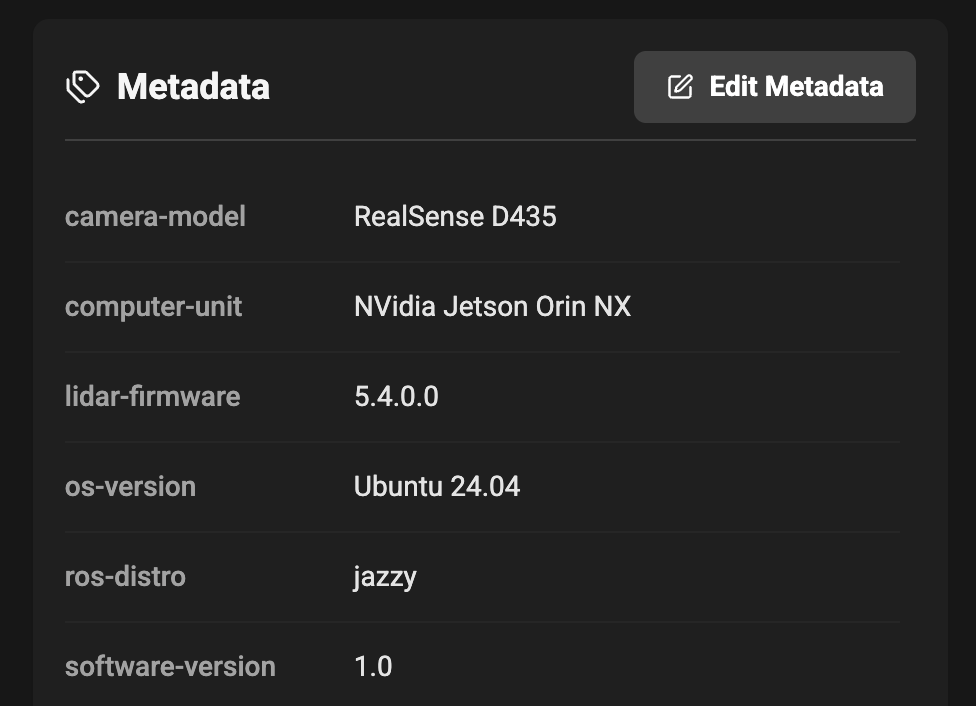
- Device Metadata for easy identification and search.
Status indicator
The status badge on the device header shows whether the device is currently online or offline. This status refreshes automatically so you can see near-real-time connectivity without reloading the page.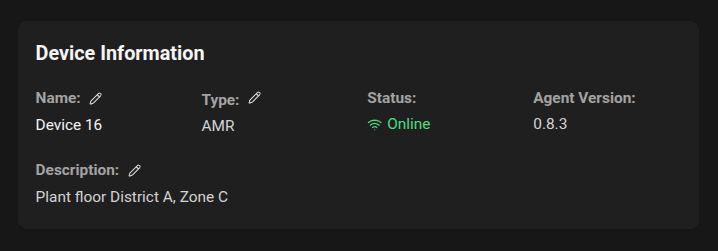
- Check the device’s network and power.
- If problems persist, see the Troubleshooting section below or contact your administrator.
Sources
The Sources section lists data sources that the agent has discovered on the device. This typically includes:- Host metrics: CPU, memory, disk, and network usage from the device’s operating system. This are always collected by the agent once it’s running.
- ROS2: If the device is running ROS2 and the agent has detected it, it will show up here with details about the ROS2 topics being monitored.
OpenTelemetry inventory and toggle
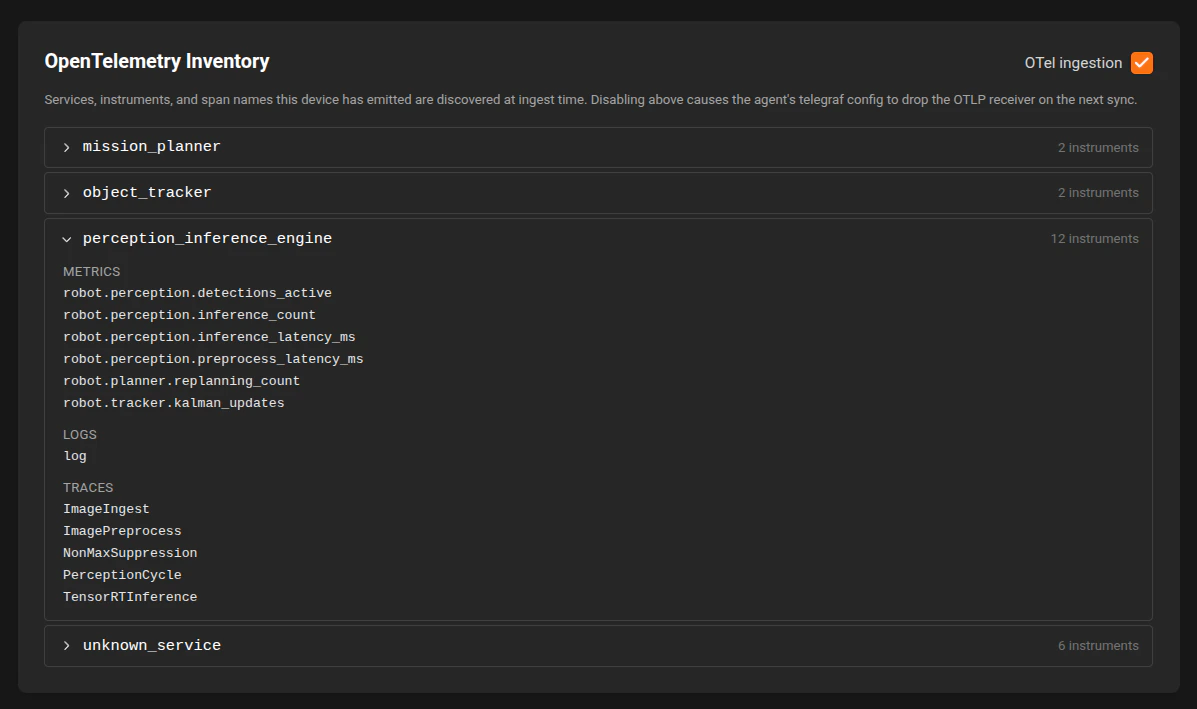
The Device Details page also includes an OpenTelemetry Inventory section.- OTel ingestion is enabled by default.
- Use the OTel ingestion toggle to enable or disable OpenTelemetry collection for that device.
- The inventory lists discovered services and their emitted metrics, logs, and traces.
- Endpoint: http://127.0.0.1:4317
- Protocol: OTLP/gRPC
Metadata
The Metadata section allows you to add custom key-value pairs to help identify and organize devices. Common metadata includes:- Software versions
- Hardware serial numbers
- Firmware versions
- Hardware models
Best practices
- Give devices meaningful names (ID + role, e.g. “AMR Sector 4B”) so they are easy to find.
- Add a short description with installation notes (mounting location, contacts, or serial numbers).
- Complete the setup right after provisioning devices to avoid confusion in dashboards or alerts.