

What is the Profile page?
The Profile page is where you manage the personal information that identifies you in the system and control a few account-level preferences. Common sections you will see:- Display name
- Primary email address (for notifications and recovery)
- Profile picture / avatar
- Password and security settings
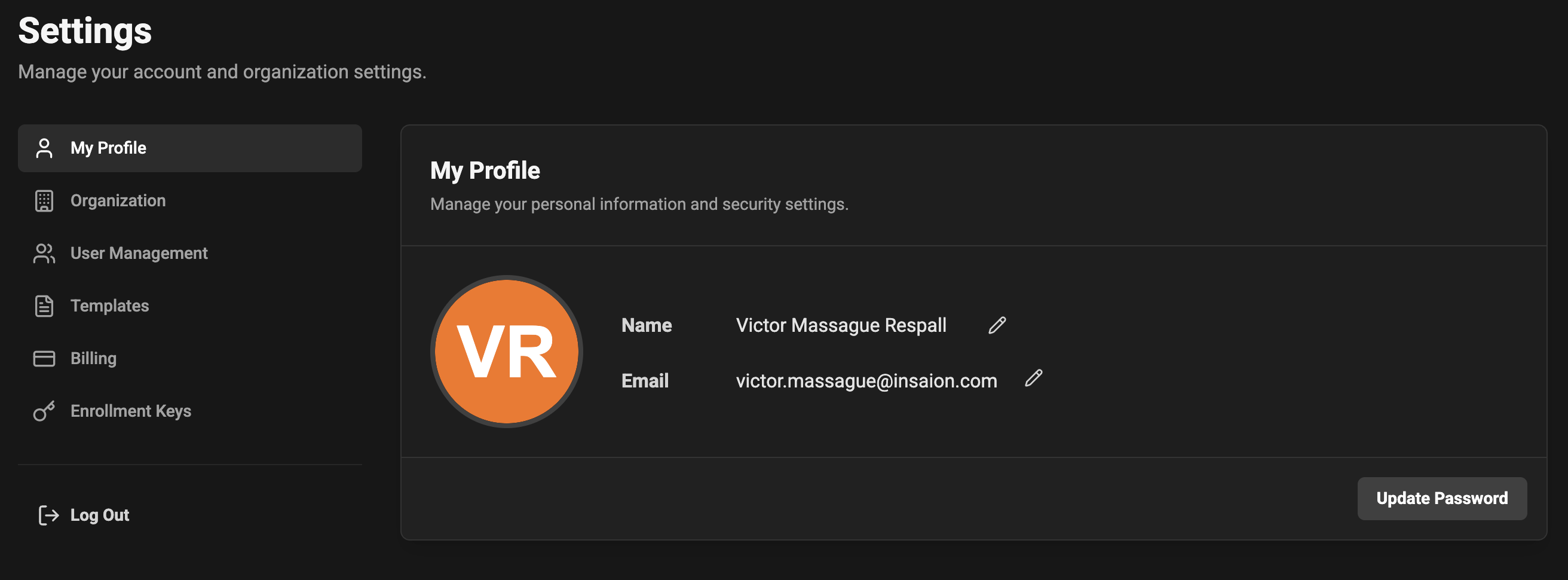
Edit your display name
- Locate the Display name field on the Profile page.
- Change the text and unfocus the field to save automatically.
- Display name is what others will see across messages and lists. Use your full name for clarity.
Change your email address
- Enter the new email address in the Email field and click “Change” or “Save”.
- Check your new email for a verification link and click it to confirm.
- Until verification is complete, critical messages may still go to your previous address.
- If the new email is already associated with another account you’ll see an error.
Change your password
- Click “Update Password” button
- Enter your current password, choose a new password, and confirm it.
- Click “Change password”.
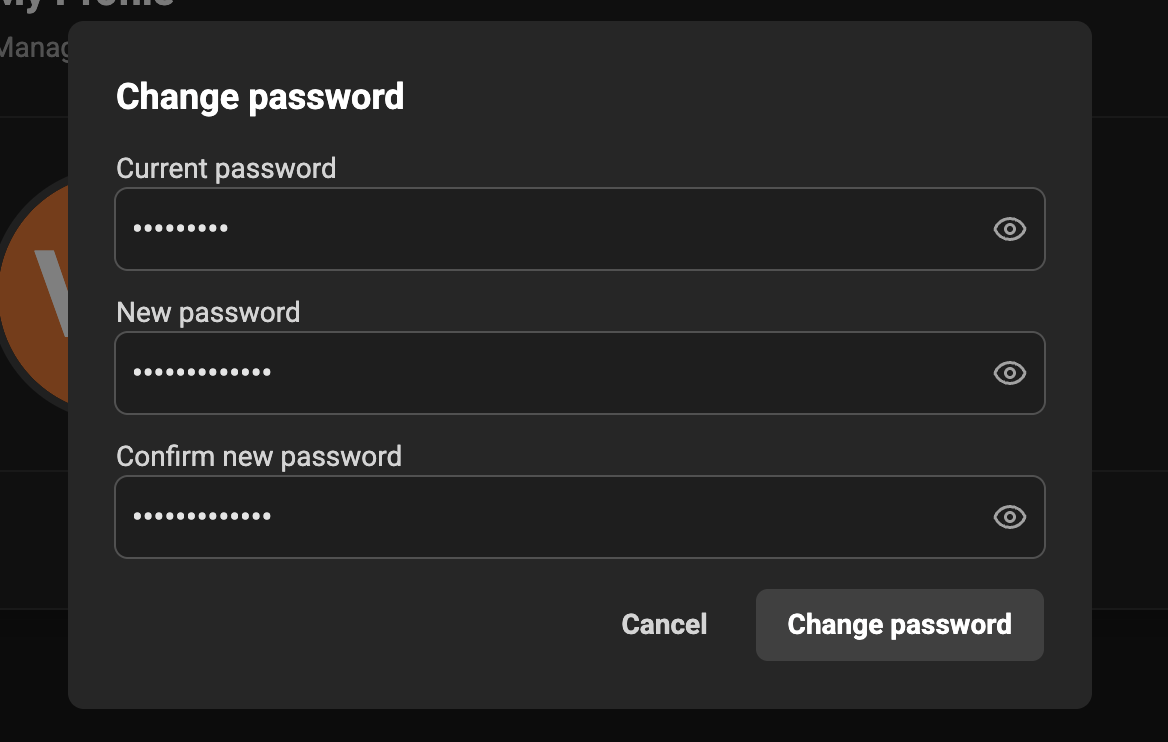
- Use a long passphrase or a password generator.
- If you suspect a breach, change your password immediately.
- Incorrect current password will prevent the change.
- New password may be rejected if it doesn’t meet complexity rules.
Troubleshooting & FAQs
- Didn’t receive verification email: check spam, confirm address, and click “Resend verification” if available.