

Timeseries
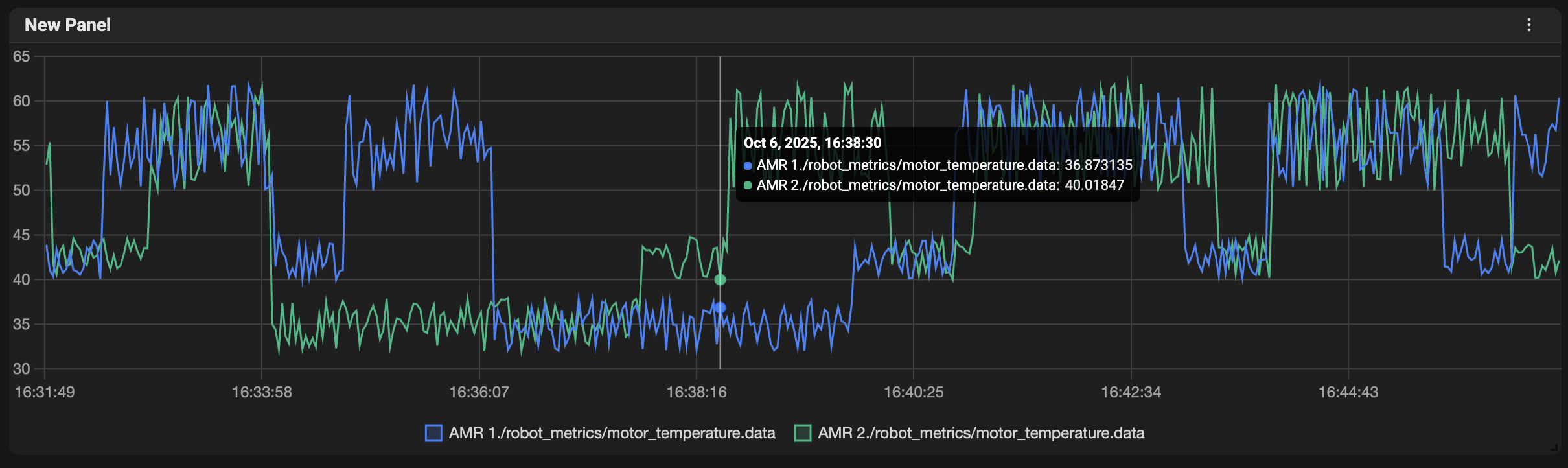
What it shows- A line chart plotting one or more numeric series over time.
- Compare several devices, sensors, or metrics on the same time axis.
- Hover the chart to see exact values and timestamps in the tooltip.
- Zoom and pan the time range (use the dashboard time picker or, where available, drag to zoom).
- Toggle series visibility using the legend (if enabled) to focus on specific lines.
- When trace exemplars are present, markers are shown on the chart and can be clicked to open the related trace.
Logs
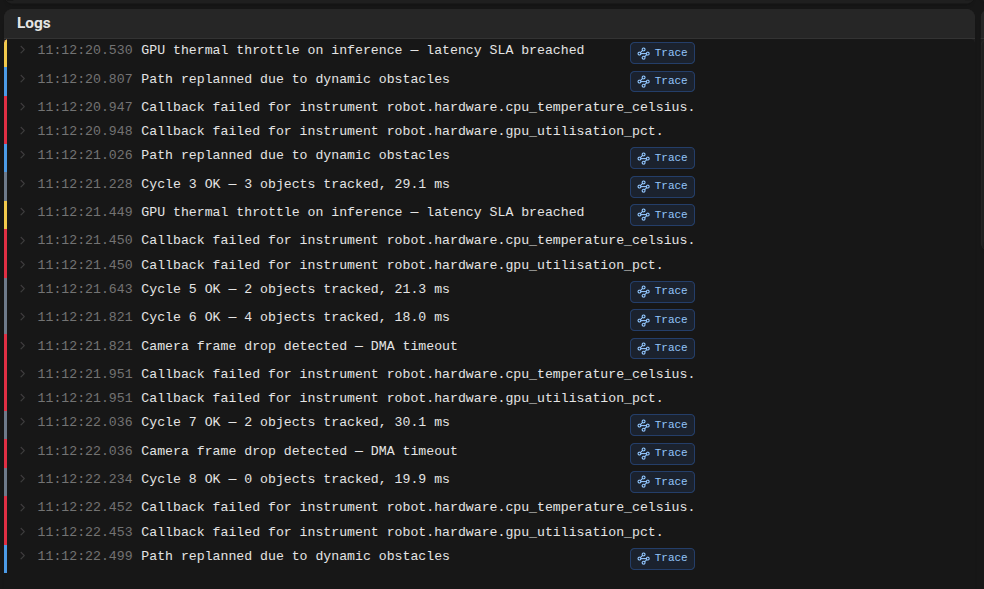
What it shows- A paginated or streaming view of log entries. Each row is a log event with timestamp and structured fields.
- Investigate events, errors, or textual traces emitted by devices and services.
- Use Log Text Search in panel query settings with: contains, does not contain, or matches regex.
- Severity and level values are surfaced with stronger visual cues to make important lines stand out.
- Tag values are shown inline and in expandable detail rows for faster triage.
- If a trace id is detected in a row, use the Trace action to open that trace immediately.
- Click an entry to expand details and inspect related fields.
- Tail or stream live logs when the dashboard is in live mode.
Trace drill-down
What it shows- A trace waterfall and span details opened from related logs or metric exemplars.
- Move from symptoms to root cause by jumping from a log line or timeseries marker into a full trace view.
- Open from Logs: click Trace on a row with a detected trace id.
- Open from Timeseries: click a trace exemplar marker.
- Review span hierarchy, timing, and service-level context in the trace drawer.
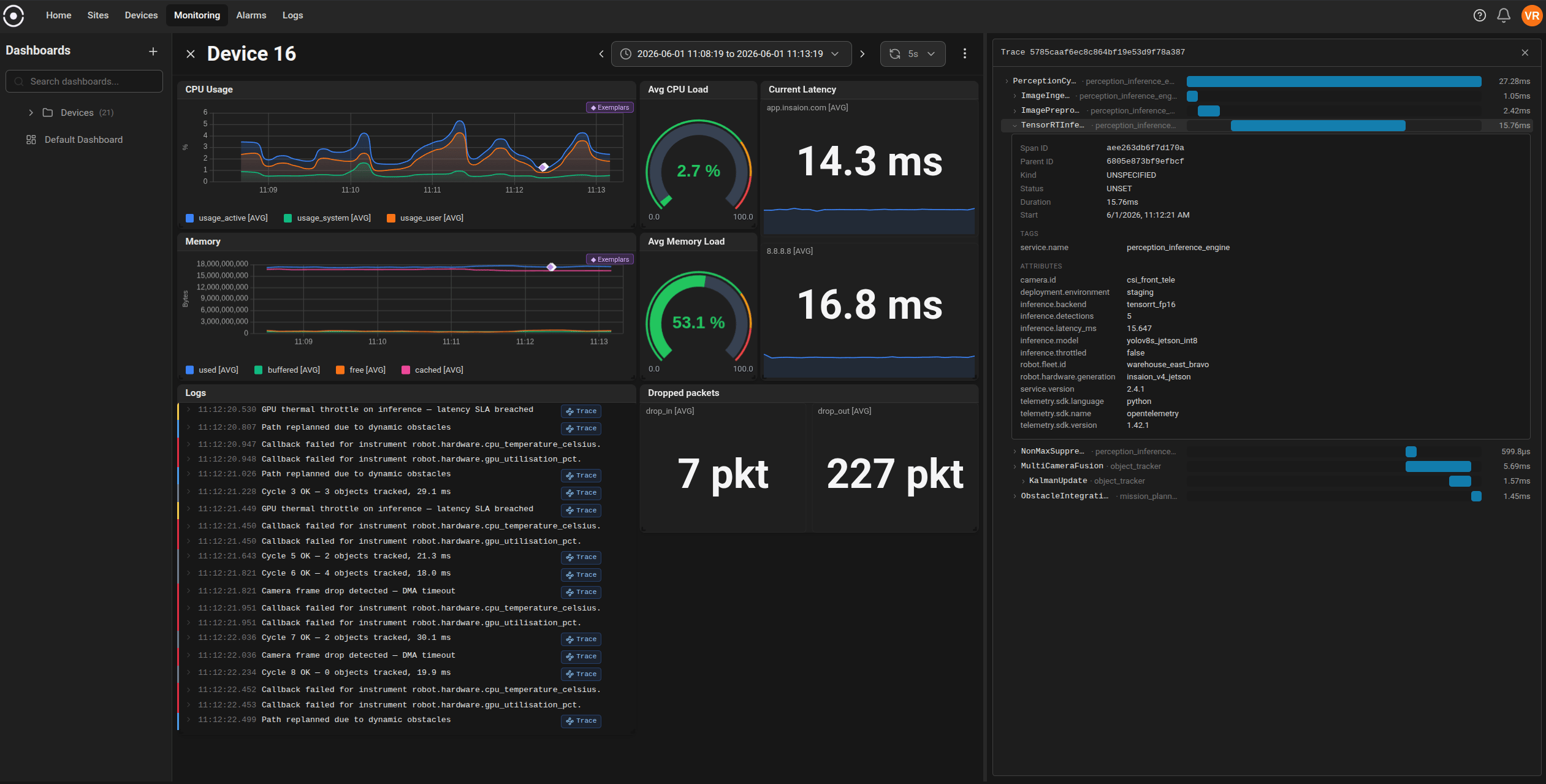
- Trace discovery is context-driven. If you do not see traces immediately, narrow the time range around an incident and check related logs/metrics first.
Gauge
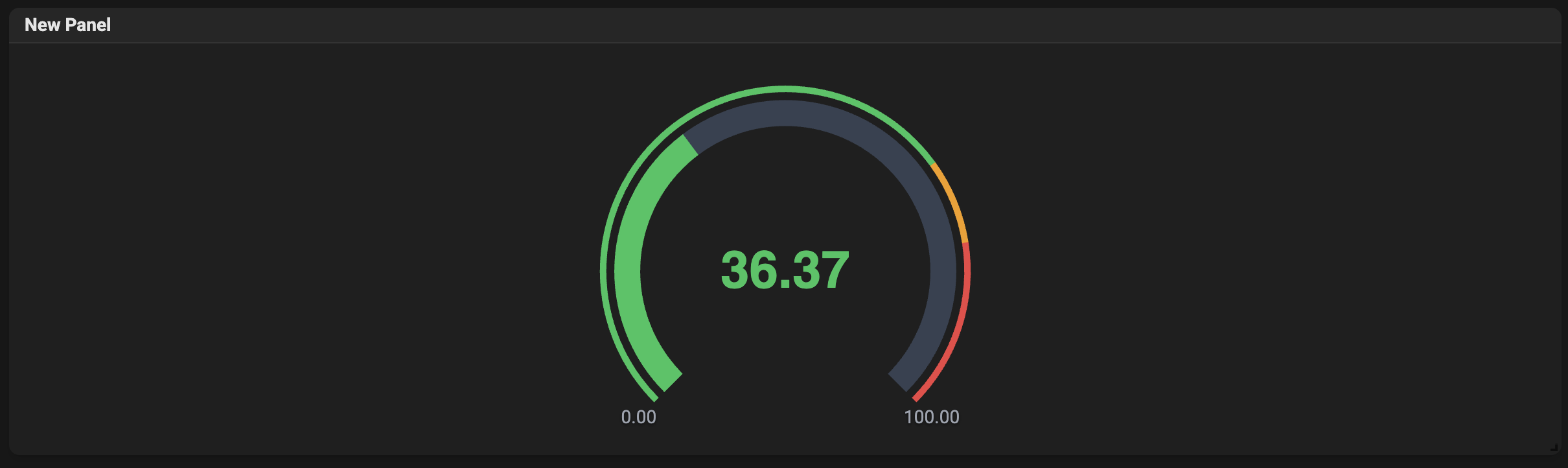
What it shows- A single-value radial gauge that highlights the current value relative to configured min/max and thresholds.
- Monitor a single key indicator that needs to be visible at a glance, such as CPU usage, battery level, or temperature.
- Numeric value and optional progress visualization in the ring.
- Threshold colors indicate normal, warning, or critical ranges.
- Configure min/max, thresholds, units, and number of decimals in the panel settings.
Stat
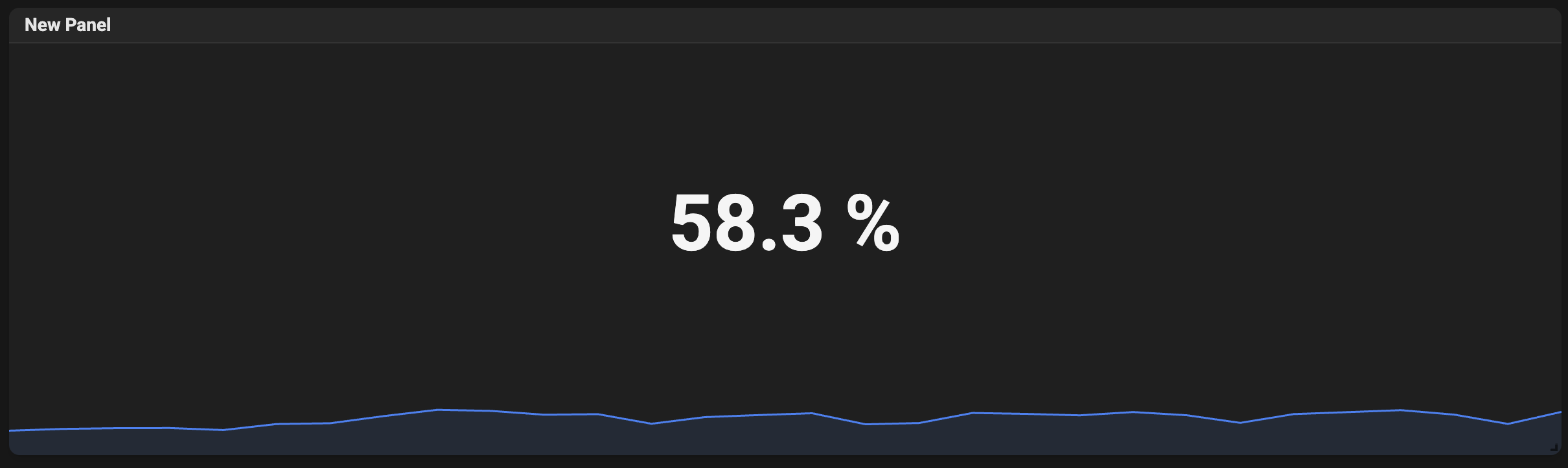
What it shows- A large single numeric value, optionally with a small sparkline showing a recent mini-trend. Useful for dashboards that need to display many KPIs compactly.
- Show totals, averages, counts, or the latest reading for a metric when space is limited.
- Optional sparkline to hint at the short-term trend.
- Click or configure to change how the value is aggregated (latest, average, sum, etc.).
Image
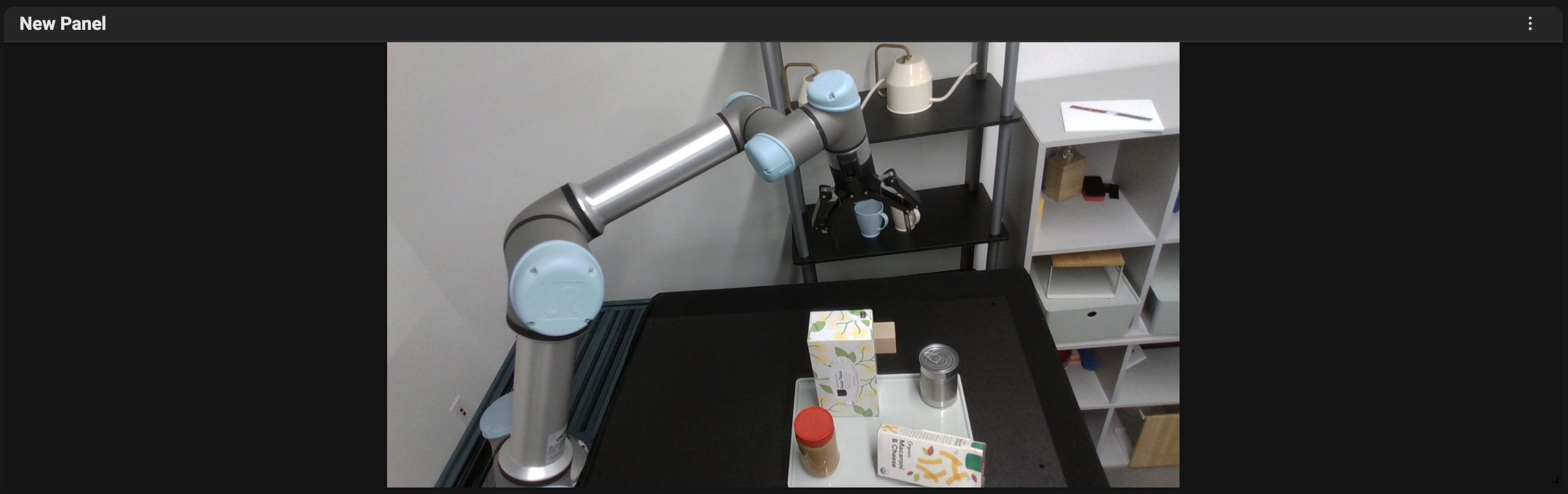
What it shows- An image pulled from a query (for example, a camera snapshot or an image stored as a metric). The panel shows the latest image for the selected time range.
- Visual inspection tasks, camera feeds, or showing pictures associated with events.
- Configure which query supplies the image and the time range used to select the snapshot.
- If no image appears, verify the query is complete in the panel configuration.
Host Map
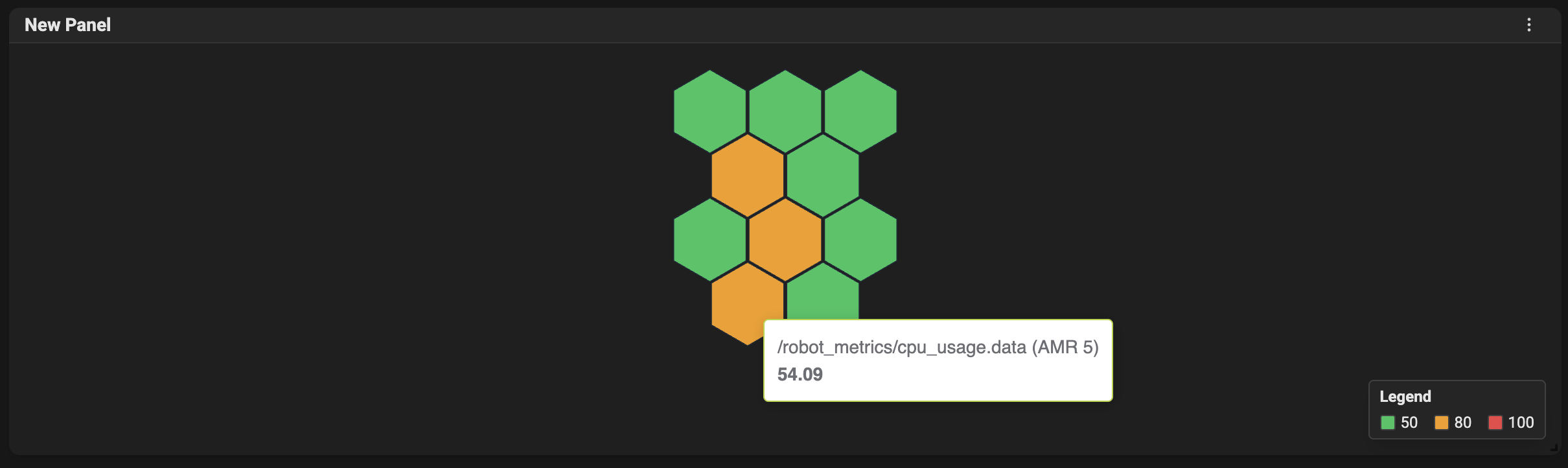
What it shows- A hexagonal (or grid) map of hosts/devices colored by a metric’s value. Each tile represents a device or cluster, helping you spot hot/cold areas quickly.
- Quickly identify groups of devices that are above or below thresholds (for example, many devices with high CPU or low battery in the same region).
- Hover tiles to see the device name and current value.
- Optional labels and cluster names can be toggled in the panel settings.
- Tile size and legend visibility are configurable.
Map
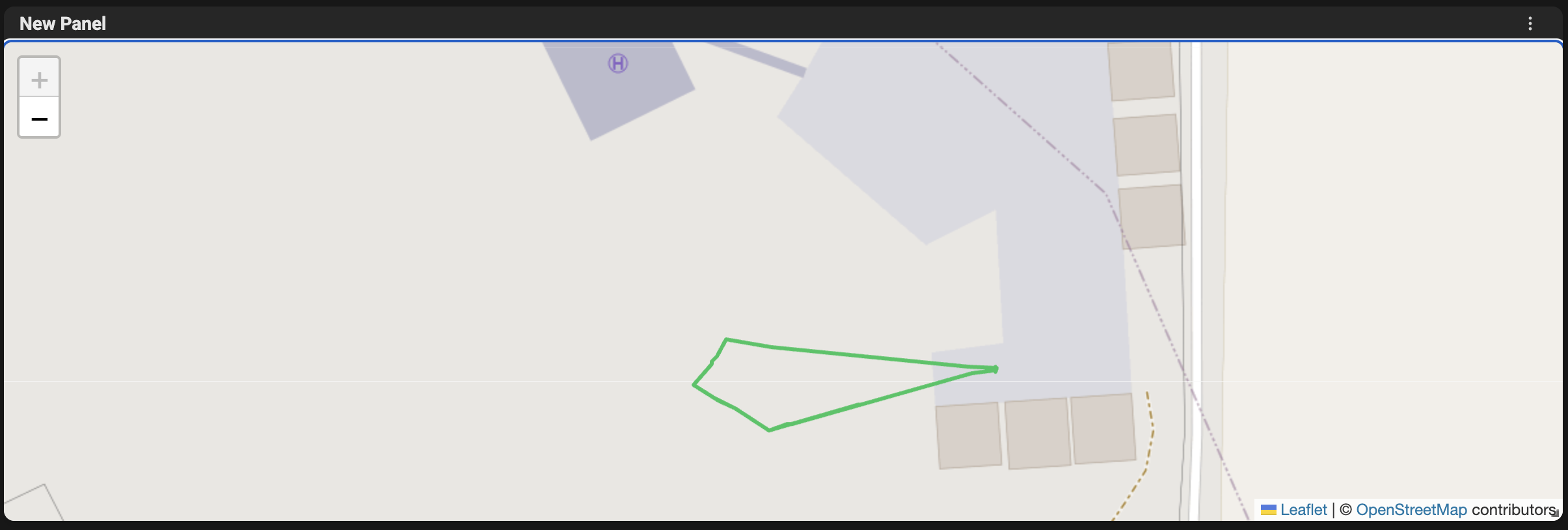
What it shows- Geographic or coordinate maps plotting positions from metrics (latitude/longitude) and optional labels. It can also render paths for moving devices.
- Visualize locations and movement traces of devices, assets, or vehicles.
- Add at least two queries (latitude and longitude); an optional third query can provide labels.
- Pan, zoom, and inspect individual points. Paths can be rendered in the latest or full-mode depending on configuration.
3D Scene
What it shows- A configurable 3D scene that renders robotics spatial data using shape-specific query slots (for example pose, vectors, status, or scalar height).
- Use rich spatial context for robotics telemetry, including trajectories, direction vectors, status overlays, and occupancy-grid maps.
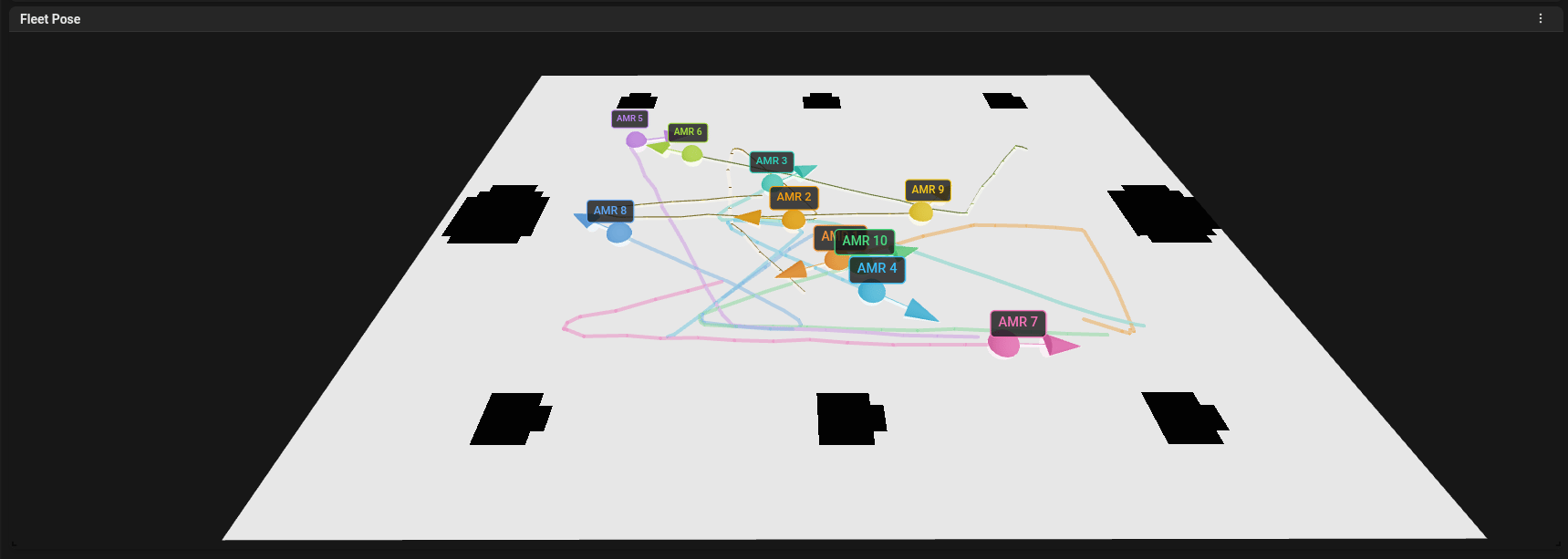
- Rotate, pan, and zoom the scene to inspect trajectories and points.
- Choose a shape type based on the data intent, then map query slots required by that shape.
- Tune scene options and shape properties from the same panel configuration flow.
- Add a static occupancy-grid map as a floor layer to align robot movement with environment layout.
3D panel refactor: shape-first workflow
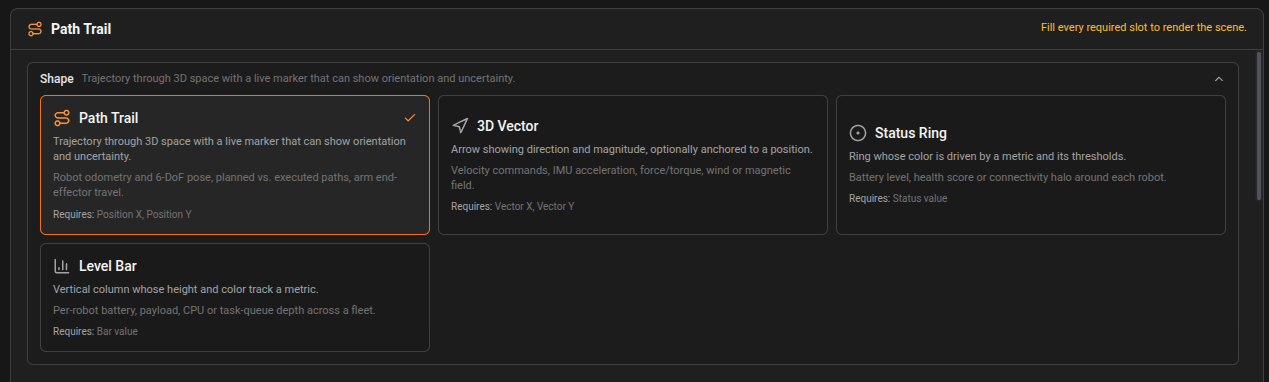
The 3D panel now uses a shape-first setup designed for faster, clearer configuration.- Shape picker: choose the rendering model first (Path Trail, Vector, Status Ring, or Bar).
- Slot-based query builder: each shape exposes required and optional data slots so you map telemetry fields to explicit semantics instead of wiring generic X/Y/Z only.
- Required-slot guidance: the editor highlights missing required slots before saving.
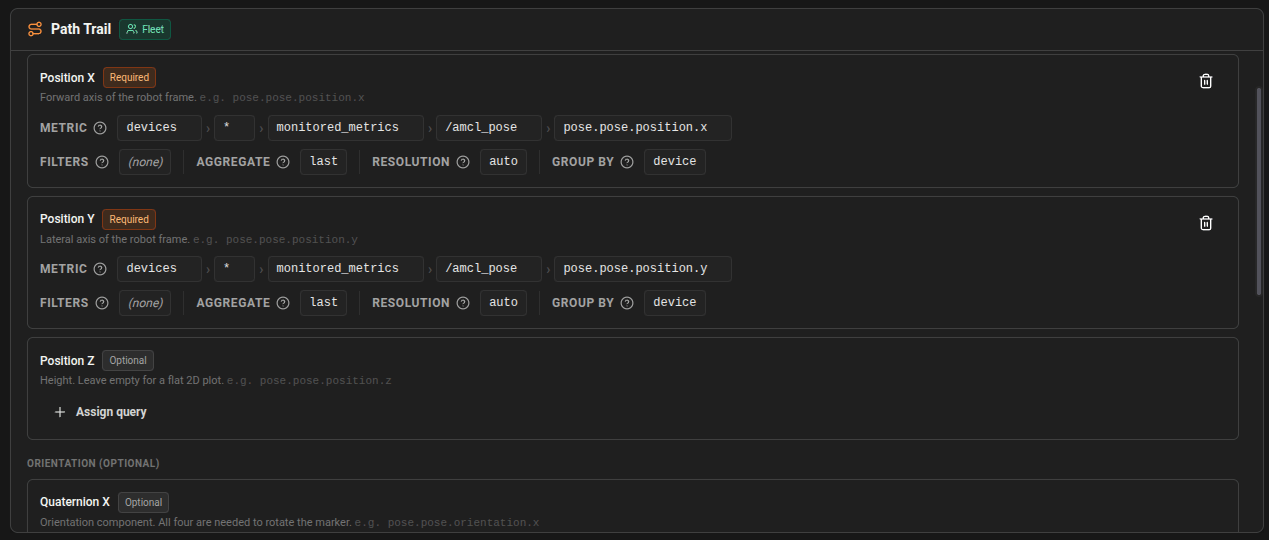
- Shape-aware defaults: new slots start with sane defaults for robotics telemetry (for example latest sample grouped by device).
Query builder improvements for 3D
- Per-slot query cards: each slot has its own query editor with field hints.
- Rebinding on shape switch: if you change shape, existing queries are remapped so you keep most of your work.
- Optional fleet context: grouped-by-device queries naturally render one shape per device.
Config options and scene controls
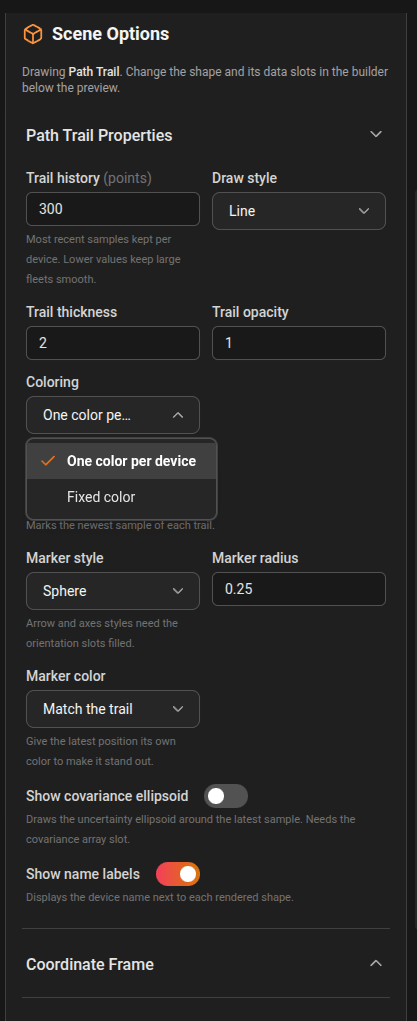
The Scene Options panel is split into focused controls:- Shape properties: style, colors, labels, history depth, marker behavior, and other shape-specific options.
- Thresholds (shape-dependent): color transitions tied to metric levels.
- Coordinate frame: choose up-axis (Z-up for ROS or Y-up for graphics workflows).
- Grid and axes: toggle grid/axes and tune grid size and divisions.
- Viewport persistence: camera position can be retained as part of panel configuration.
Static map layer (occupancy grid)
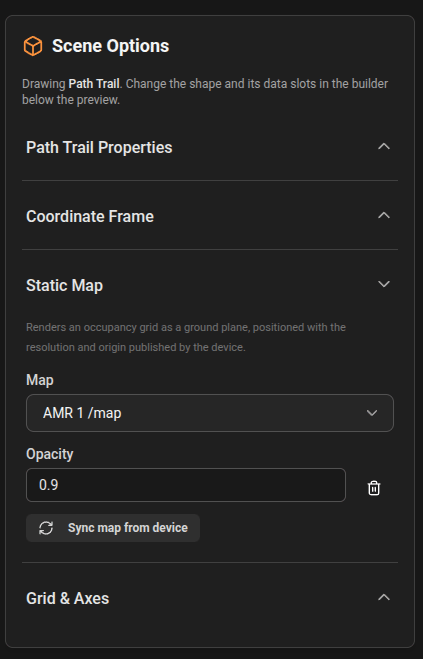
The 3D panel can render a static occupancy grid under your live shapes.- Attach an existing static map, or capture one from an online device topic publishing
nav_msgs/msg/OccupancyGrid. - Adjust map opacity to balance readability between map and telemetry overlays.
- Use this mode for indoor navigation debugging, localization validation, and route verification.
Tips for choosing the right visualization
- Use Timeseries for trends and multi-series comparison.
- Use Gauge or Stat for single high-priority KPIs that should be visible at a glance.
- Use Map or Host Map for spatial information and clustering.
- Use Logs when you need to inspect textual events instead of numeric metrics.