

Devices list
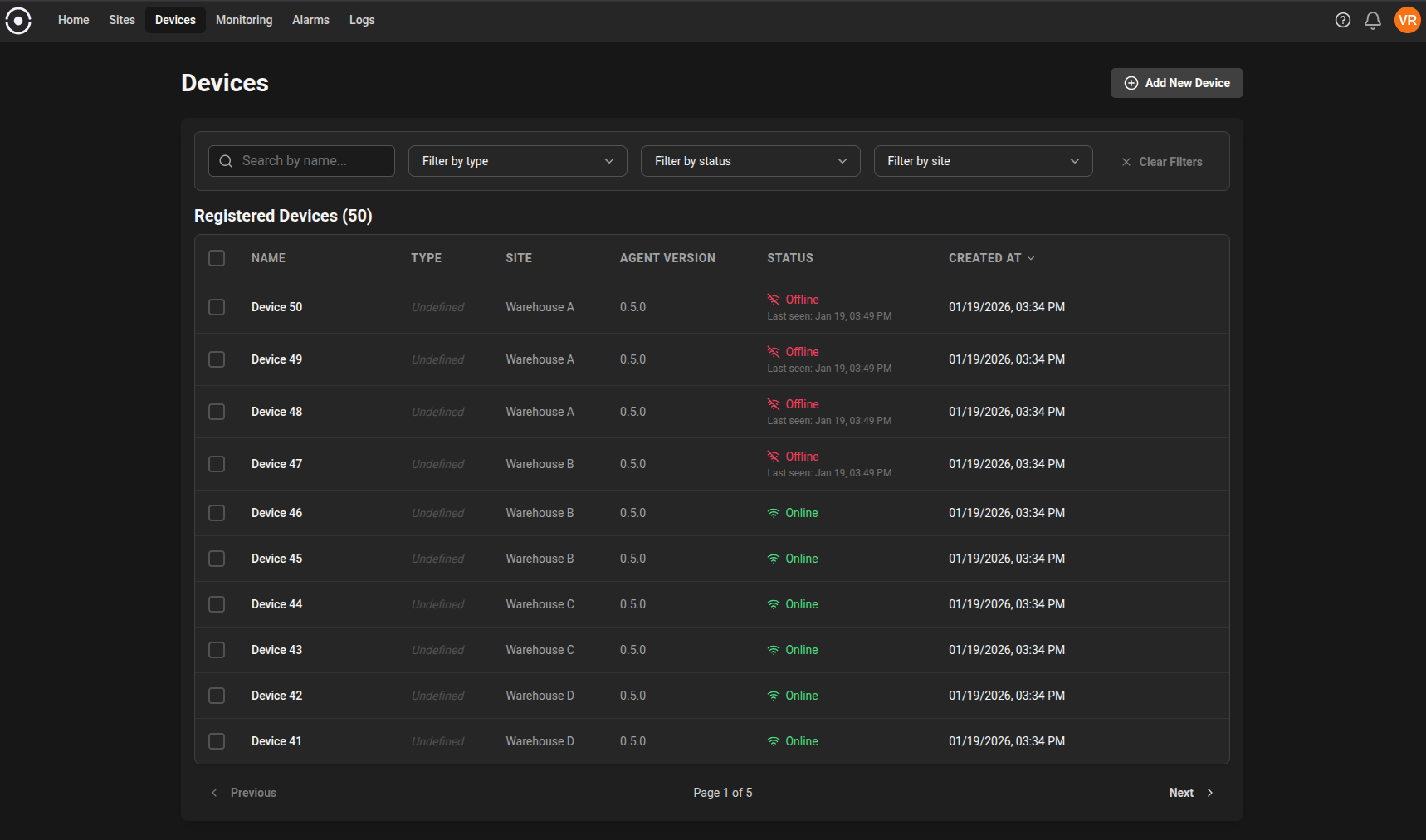
What you’ll see on this page
- A searchable, paginated table with one row per device. Each row shows the device’s identity and key operational fields so you can quickly scan fleet health.
- Columns (default):
- Name: human-friendly device name.
- Template: the device template (if any) that defines default configuration for this device.
- Type: device type or model. (AMR, Drone,…)
- Site: the physical or logical site where the device is located.
- Agent Version: version of the agent running on the device.
- Status: online / offline with last seen timestamp.
- Created At: timestamp when the device was first registered.
Filters and search
- Filter by Name, Type, Status and Site to narrow the list.
- Full-text search over device name, ID, and tags.
- Sort by Name, Site, or Created At for quick triage.

Device registration and automatic appearance
Registered devices appear automatically in this list as soon as they finish their enrollment or start sending heartbeats. Registration works through an enrollment key: select an existing enrollment key (or create one) on the Add Device page, then run the generated install command so the systemd service registers automatically (See the Agent installation page.). See the Add device page for details. When a device registers, it takes the default name based on theDefault Device Name Prefix on Settings > Organization. If it is not set, the device name will be device-xxxx where xxxx is an increasing number. You can rename the device at any time in the device details view.