

At a glance
The device Config tab has three sections in the left sidebar:- Overview — device name, type, description and metadata.
- Data Collection — every topic the device publishes, and what the platform does with each one.
- Open Telemetry — the OTel inventory and ingestion toggle.
Status indicator
The status badge on the device header shows whether the device is currently online or offline. This status refreshes automatically so you can see near-real-time connectivity without reloading the page.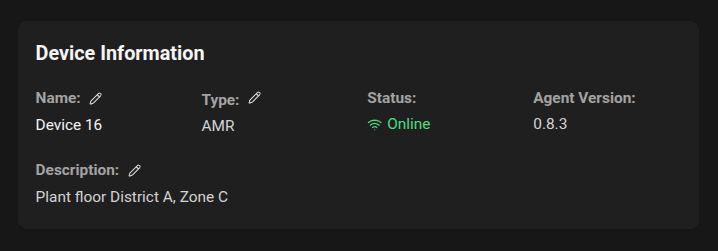
- Check the device’s network and power.
- If problems persist, see the Troubleshooting section below or contact your administrator.
Data Collection
A device can do two different things with a topic, and they are independent:- Monitor — ingest it as live telemetry for dashboards, queries and alarms.
- Record — write it to MCAP files in the on-device rolling buffer for later playback and upload.
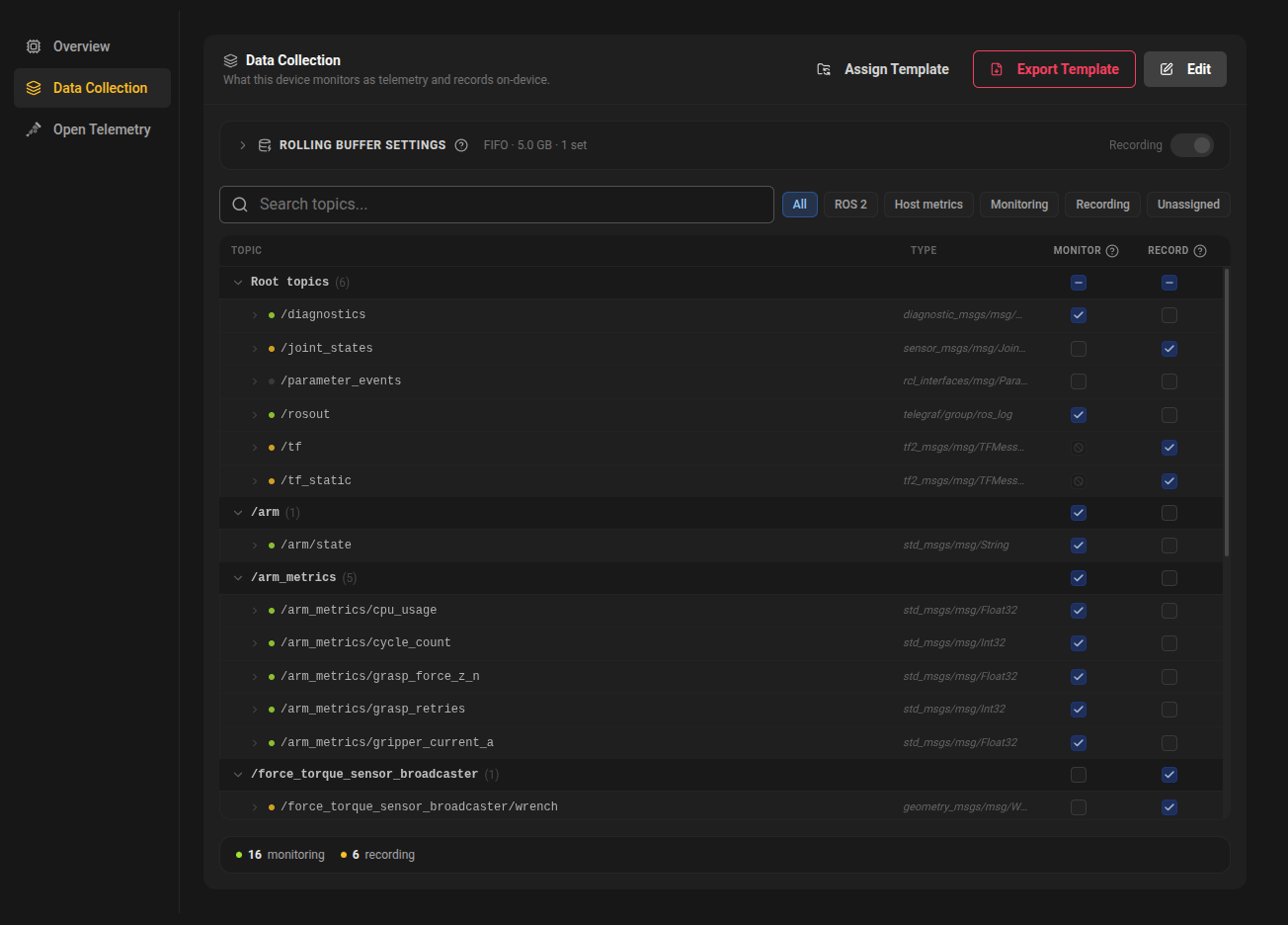
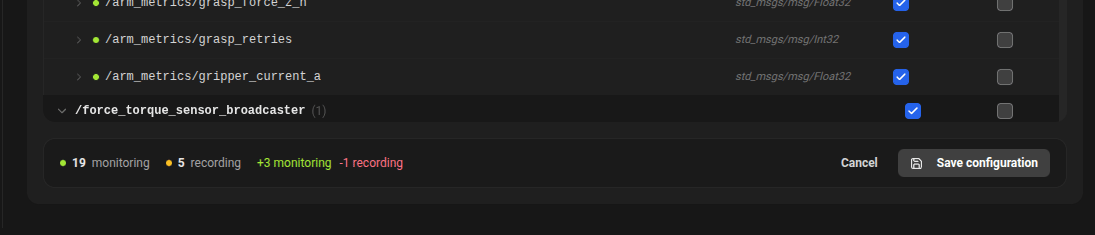
+3 monitoring, -1 recording) before you commit. Saving pushes the new configuration to the agent automatically — there is no need to restart the agent or the device.
Finding topics
- Search filters by topic name.
- Filter chips narrow the list to
All,ROS 2,Host metrics,Monitoring,RecordingorUnassigned.Unassignedis the quickest way to spot topics nothing is collecting yet. - Topics are grouped by namespace (
/camera,/nav, and so on). Devices with more than 40 topics open with groups collapsed. - The checkbox on a group header applies to every topic beneath it, so you can turn on a whole namespace in one click. It shows a dash when only some of the group is selected.
- Expanding a row shows the message fields the topic carries. Selecting a topic always captures all of its nested fields; there is no per-field selection.
Monitor column
Ticking Monitor ingests the topic as live telemetry. Two kinds of row cannot be changed:- Host metrics (
/host_metrics/*) are always collected while the agent runs. They show a padlock and cannot be switched off. - Heavy message types cannot be ingested as telemetry and show a crossed-out checkbox:
sensor_msgs/msg/Image,sensor_msgs/msg/CompressedImage,sensor_msgs/msg/PointCloud,sensor_msgs/msg/PointCloud2,nav_msgs/msg/OccupancyGridandtf2_msgs/msg/TFMessage. These are exactly the topics worth recording, so their Record checkbox stays available.
Downsampling
High-rate topics do not need to be stored at full rate. While editing, hover a monitored topic and click the gauge icon to choose:- No downsampling — store every message.
- Stride (every N) — keep one message out of every N.
- Max rate (Hz) — keep at most N messages per second.
1/5, 2 Hz). Downsampling applies to monitored telemetry only, not to recordings.

Record column
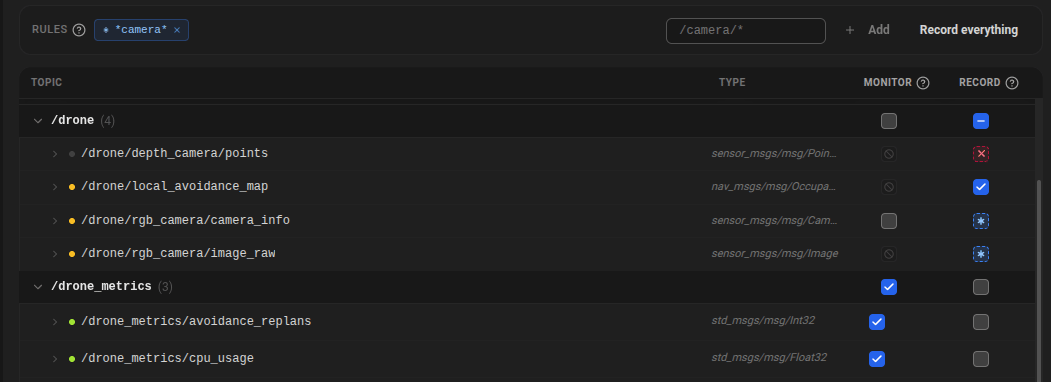
Ticking Record adds the topic to the rolling buffer. The Record checkbox has four states, because recording is driven by patterns as well as individual ticks:
Host metrics come from the agent’s own collector rather than the ROS graph, so they cannot be recorded.
Rules
The Rules strip above the table records whole groups of topics with one pattern:- Type a glob such as
/camera/*and press Enter, or use Record everything to add*. *matches any run of characters including/, so/camera/*also matches/camera/depth/points.- Every topic a rule matches shows an asterisk in the Record column.
/camera/* except the point cloud” without listing every topic by hand.
An exclusion written as a pattern (rather than a single topic) can only be removed from the Rules strip. Those rows show a disabled checkbox that explains which rule is holding the topic out.
Topics that are not currently published
Topics that exist in the saved configuration but that the device is not publishing right now — because it is offline, or because a node has not started — appear in a Not currently published group at the bottom of the table, markedoffline.
They are shown rather than hidden so that saving an offline device’s configuration cannot silently drop them.
Rolling buffer settings
The Rolling buffer settings panel above the table holds everything about recording that is not per-topic. The Recording switch sits in the panel header so you can see and change it without expanding, and the collapsed header summarises the policy, quota and number of recording sets.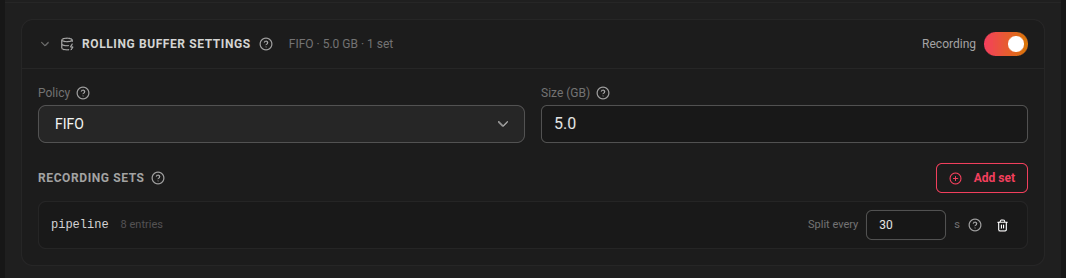
- Recording — whether the rolling buffer runs at all. If you select topics but leave this off, the page warns you that nothing will be captured and offers to switch it on.
- Policy — how data is retained once the quota is full:
- FIFO — the oldest recordings are deleted (recommended for most users).
- HARD — recording stops.
- NONE — no limit; use with caution.
- Size (GB) — maximum on-device storage for recordings. Not applicable when the policy is
NONE. - Uploads to — the storage endpoint and bucket the agent writes to. Shown for reference; it is configured on the device itself.
- Recording sets — each set writes its own MCAP files with its own split duration (how long a single file may get before a new one starts). Keep the split small to limit file size and the amount of data at risk if a file is lost.
+n badge when other sets also capture that topic.
Note: The rolling buffer requires agent version 0.7.0 or later. On older agents the Record column and the settings panel are hidden and the page explains how to upgrade. Monitoring works on any agent version.
Templates
Two buttons in the Data Collection header let you reuse a configuration:- Assign Template applies a saved template to this device.
- Export Template saves this device’s current monitoring and recording configuration as a new template. The dialog previews exactly what will be captured before you name it.
- The template name, with a padlock, since the table is read-only.
- Auto-update — when on, edits to the template are applied to this device automatically. When off, the device keeps the configuration it has until the template is applied again.
- Edit template — opens the template, affecting every device that uses it.
- Detach — stops following the template and drops into edit mode so you can configure this device on its own. The device keeps its current configuration; detaching changes nothing about what it collects.

Metadata
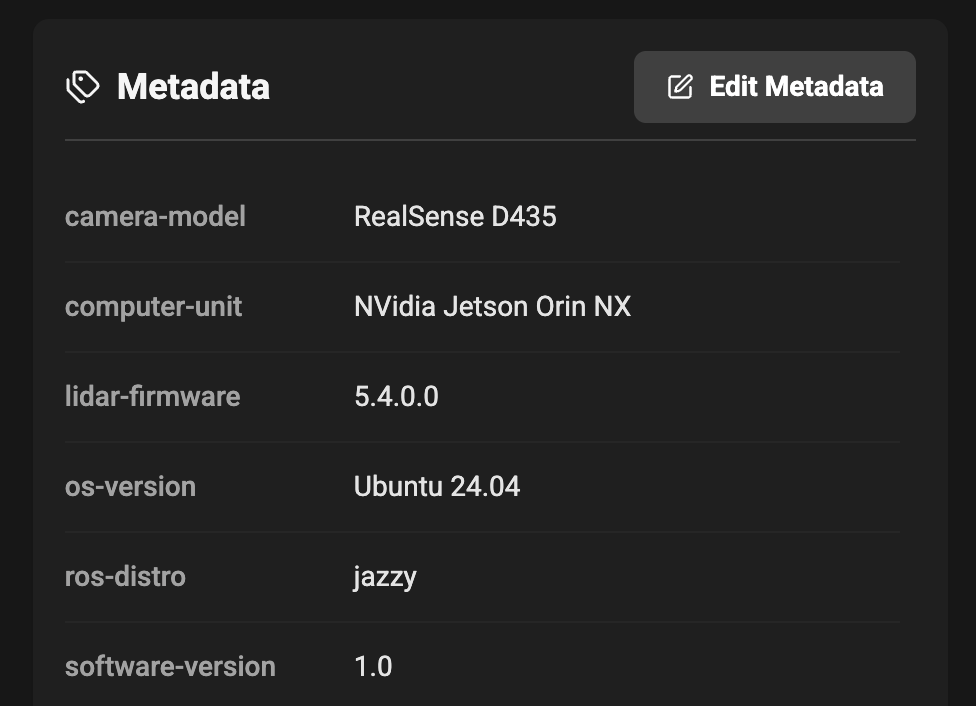
The Metadata section on the Overview tab allows you to add custom key-value pairs to help identify and organize devices. Common metadata includes:- Software versions
- Hardware serial numbers
- Firmware versions
- Hardware models
Example use cases
- Dashboards and alarms — monitor
/battery_stateand/cmd_vel, and downsample a chatty/odomto 2 Hz. - Incident playback — record
/camera/*and/velodyne_pointswith a rule, even though they cannot be monitored as telemetry. - Debugging — use Record everything temporarily to capture the last hour of everything the robot publishes.
- Compliance — keep a rolling window of operational data with a FIFO policy and a fixed quota.
Best practices
- Give devices meaningful names (ID + role, e.g. “AMR Sector 4B”) so they are easy to find.
- Monitor what you want to chart or alarm on; record what you want to replay. Heavy sensor topics belong in the Record column.
- Prefer a rule such as
/camera/*over ticking twenty individual topics — it keeps working when the robot gains a new camera topic. - Keep the quota size reasonable to avoid filling device storage, and keep the split duration small.
- Use the
Unassignedfilter after onboarding a device to check nothing important was missed. - Once a device is configured the way you want, use Export Template so the next device takes one click.
Troubleshooting
- A topic is missing from the table. The agent only lists topics it has seen. Check the node is publishing, then reload.
- A Record checkbox will not turn on. A pattern exclusion is holding it out; remove that rule from the Rules strip.
- A topic is ticked but no data arrives. Confirm the schema type is supported for monitoring, and check the save actually completed.
- Recording is configured but nothing is captured. Check the Recording switch in the rolling buffer header, and that the quota is not full with a
HARDpolicy.