

- What it consumed: CPU, memory, disk and network of the runner and of your processes, on the device’s charts for the time of the run.
- What happened: the run’s MCAP recording, uploaded when the job stops the agent, ready to open in the viewer.
Before you start
- Agent 1.4.0 or later, for the automatic upload when a recording ends.
- A plan that includes automatic uploads (Starter and up). See Billing.
- A CI runner that can run Docker, with outbound access on port 443 (see Network and disk requirements).
- A simulation that publishes on ROS 2 on the runner, for example Gazebo started headless.
How it works
- One device for CI. You register it once and store its two credentials as CI secrets. Every run uses the same device, so runs are comparable on the same charts and recordings timeline. No device is created per run.
- Each run writes the credentials into a folder, starts the agent container with that folder as its state, and runs the simulation. The agent records the topics you chose for the device, and starts a new recording each time it starts, so each run is one recording.
- When the job stops the agent (
docker stop), the agent ends the recording, stores its last data, and asks INSAION what to upload. It uploads that part of the recording, waits until the upload is done, and exits.
1. Register the CI device
Register the device once, from any machine with Docker. It does not need to be the CI runner.-
In INSAION, open Devices → Add Device, choose Docker and pick an enrollment key. Name the device after what it is, for example
ci-sim. -
Copy the generated
docker runcommand, and change the state volume to a folder you can read afterwards, for example-v "$PWD/ci-sim:/var/lib/insaion-agent". - Run it and wait until the Agent status block shows the device online.
-
Stop and remove the container:
-
Read the two credentials the agent saved:
-
Store them as CI secrets, for example
INSAION_DEVICE_IDandINSAION_DEVICE_TOKENin GitHub (Settings → Secrets and variables → Actions). -
Delete the local folder, so the credentials only live in your CI secrets:
2. Configure the device in INSAION
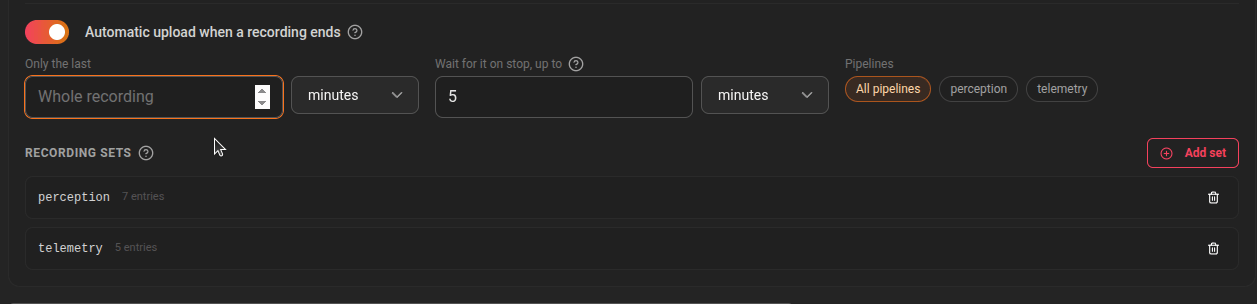
Open the device and its Data Collection tab (see Device configuration):- Tick Record for the topics you want in each run’s recording, for example
/tf,/odom,/scanand your test topics. Topics appear in the table once the agent has seen them, so do this after a first run, or prepare it in a template. - In Rolling buffer settings → Uploads, switch on Automatic upload when a recording ends, and set:
- Only the last: leave it empty to upload the whole run, or set it to keep only the end of long runs, for example the last 10 minutes.
- Wait for it on stop, up to: how long the agent may take to finish the upload when the job stops it. 5 minutes by default. Set it longer than the upload of a run takes on your runners.
- Pipelines: which recording sets to upload. All of them by default.
- Save.
3. Add the agent to your workflow
- Credentials: the agent reads its identity from
device_id.txtanddevice_token.txtin its state folder. Writing them from secrets at the start of each run is all it needs. No enrollment key is used in CI. --network hostand/dev/shm: the agent joins the simulation’s ROS 2 graph on the runner. Use the sameROS_DOMAIN_IDand, if you set one, the sameRMW_IMPLEMENTATIONin the simulation and in the agent (-e ROS_DOMAIN_ID=...).--pid hostand the/proc,/sys,/etcmounts: the agent measures the runner, not only its own container.INSAION_PROCSTAT_PATTERN: optional. A regular expression of process names to measure one by one, so the charts show what your simulation and nodes cost. Leave it out for host-wide metrics only.docker stop -t 360: sends the agent the stop signal and gives it 360 seconds before Docker kills it. Keep this longer than Wait for it on stop, up to (300 seconds by default), so the agent always gets to finish the upload.if: always(): the recording is uploaded even when the tests fail, which is when you need it most.- The last line makes the step fail when the upload did not finish. Remove it if a lost recording should not fail the job.
ghcr.io/insaion/agent:v1.4.0-jazzy. Use the image for your ROS 2 distribution: humble, jazzy, kilted or lyrical.
What the agent logs on stop
The stop step prints the agent’s[ExitUpload] lines:
Other lines you may see:
- No
[ExitUpload]lines at all: Automatic upload when a recording ends is off for this device, or the agent is older than 1.4.0. The recording is not uploaded: not_entitled: your plan does not include automatic uploads.The recording is not uploaded: quota_exceeded: your organization’s storage is full. See Storage and uploads.
Find a run in INSAION
- Recording: open the device’s Recordings tab. Each run is its own recording block on the timeline, green once uploaded. Open it in the viewer from there or from the Recordings page. See Device recordings.
- Cost: open the device’s monitoring dashboard and set the time range to the run. The runner’s and your processes’ CPU, memory, disk and network are there for the minutes of the run.
Good to know
- One job at a time per device. Two agents with the same credentials disconnect each other. Keep the
concurrencygroup, and for parallel jobs, such as a test matrix, register one CI device per parallel slot and give each slot its own secrets. - Self-hosted runners next to robots. With
--network host, the simulation’s ROS 2 graph reaches every machine on the runner’s network that uses the sameROS_DOMAIN_ID. Robots there then subscribe to the simulation’s topics, which can slow its large messages down to a crawl, and record them. Keep the graph on the runner: setROS_AUTOMATIC_DISCOVERY_RANGE=LOCALHOST(Jazzy and later) orROS_LOCALHOST_ONLY=1(Humble) in the simulation and in the agent, or use a domain ID no robot uses. GitHub-hosted runners are not affected. - Do not rotate the CI device’s credentials. The token in your secrets stays valid from run to run, because each run writes it fresh. If someone selects Rotate credentials on the device, the next run rotates the token on the runner, the new token is lost with the runner, and the run after that is refused. If the token must be replaced, for example because it leaked, delete the device, register a new one and update both secrets.
- The device goes offline after every run. Leave it out of alarms that fire when data is missing, for example with a tag such as
env=cion the device and a scope that excludes it. See Tags and Create an alarm. - Storage. Each uploaded run counts towards your organization’s storage. Use Only the last and Pipelines to keep only what you need.
- Runs that are killed. If the job is cancelled or the runner dies before the stop step, the agent never gets the stop signal and that run’s recording is not uploaded.